
You open Google Gemini, enter your prompt, and instead of a response, you see the message: “Something went wrong (1152).”
If you’ve also run into the Gemini Pro 1152 error, you’re not alone. It’s one of the more common issues users face, whether you’re a student researching, a developer testing prompts, or simply relying on Gemini for daily work.
The good news is that this error is usually temporary and, in most cases, easy to fix.
In this guide, we’ll break down what the Gemini Pro “Something went wrong (1152)” error means, what typically causes it, and the steps you can take to resolve it quickly.
What Is Gemini Pro “Something Went Wrong (1152)” Error?
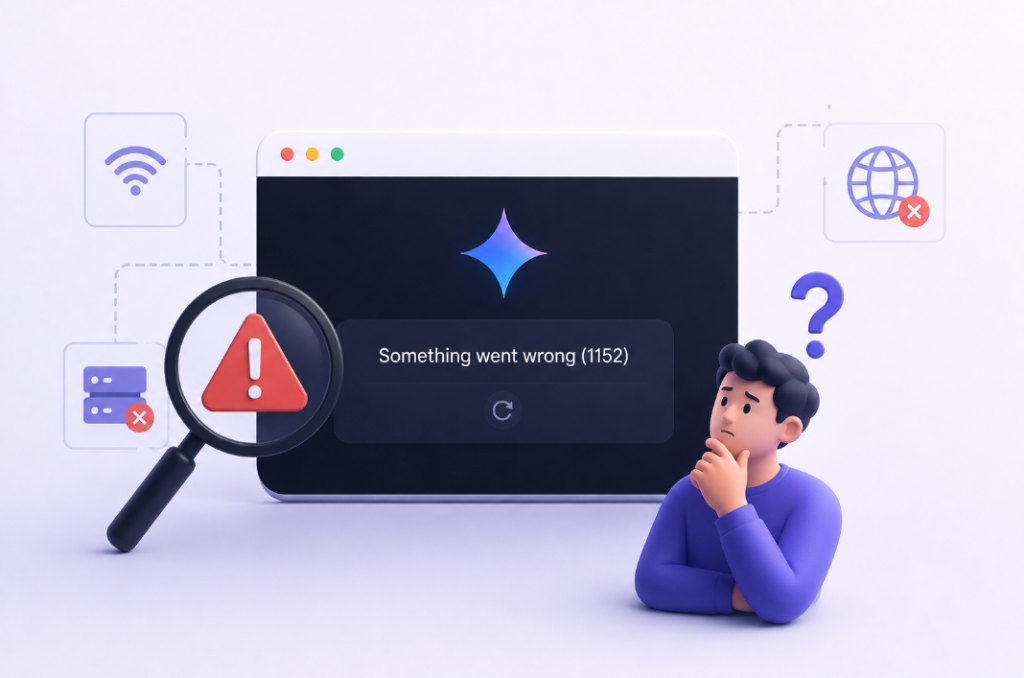
The Gemini Pro “Something went wrong (1152)” error appears when Google Gemini fails to process your request or cannot establish a stable session.
In simple terms, Gemini is unable to load or respond properly due to a temporary connection, browser, or server-related issue.
This error can happen for several reasons, including:
- High server traffic or temporary issues on Gemini’s end
- An expired or corrupted browser session
- VPN or proxy settings interfering with the connection
- Outdated cache or conflicting browser cookies
- API rate limits, especially for advanced or API-based usage
- Network or DNS issues affecting page loading
- Browser extensions blocking Gemini scripts
You may encounter this error while starting a new chat, during an active conversation, or when switching between Gemini models. While it can occur on any browser or device, it’s reported more often by Chrome users due to Gemini’s large user base on Chrome.
How to Fix Gemini Error 1152
If you’re seeing error 1152, don’t worry—most of the time, it’s caused by a temporary browser, network, or session issue. Start with the quick fixes below and work your way down if needed.
1. Refresh Gemini
Sometimes Gemini simply fails to load properly, and a refresh is all it takes.
Try reloading the page first. For a deeper refresh, use Ctrl + Shift + R on Windows or Cmd + Shift + R on Mac. If the error still appears, close the tab completely and reopen Gemini.
2. Check Your Internet Connection
Before trying anything complicated, make sure your internet connection is stable.
Even brief connection drops can interrupt Gemini and trigger errors like 1152. If your network feels slow, switch between Wi-Fi and mobile data and see if that helps.
3. Clear Cache and Cookies
Browsers store temporary files to speed things up, but sometimes that stored data causes problems instead.
Clearing your cache and cookies can remove old session data that may be interfering with Gemini. This is especially useful if the error started appearing after a browser update or after not using Gemini for a while.
4. Try Incognito Mode
Incognito mode is a quick way to check whether your browser is causing the problem.
Since it runs without most saved data or extensions, it gives you a clean environment to test Gemini. If Gemini works there, the issue is likely with your regular browser setup.
5. Disable Browser Extensions
Some browser extensions don’t play nicely with Gemini.
Ad blockers, privacy tools, and writing assistants like Grammarly can sometimes interfere with how the site loads. Try turning extensions off temporarily and reload Gemini.
6. Turn Off Your VPN or Proxy
If you’re using a VPN or proxy, it may be affecting your connection to Google’s servers.
Try disabling it for a few minutes and check whether Gemini starts working again. In many cases, changing servers also helps.
7. Try Another Browser or Device
A simple browser switch can tell you a lot.
Open Gemini in Mozilla Firefox, Microsoft Edge, or another device. If it works there, the issue is likely limited to your original browser.
8. Check Gemini’s Server Status
Sometimes the issue isn’t on your side at all.
Google services occasionally experience outages or temporary slowdowns. Before spending too much time troubleshooting, check whether other users are reporting problems.
9. Sign Out and Sign Back In
Login sessions can expire or break without warning.
Signing out of your Google account and logging back in refreshes your session and can often fix account-related issues.
10. Wait and Try Again Later
If nothing else works, waiting may actually be the best option.
Heavy usage, temporary server load, or request limits can all trigger error 1152. Give it 15–30 minutes, then try again.
Troubleshooting Quick-Reference Table
| Problem | Likely Cause | Best Fix |
| Error appears mid-conversation | Session timeout/request failure | Hard refresh or re-login |
| Error only in Chrome | Browser-specific conflict | Clear cache or try another browser |
| Error disappears in incognito | Extension or cookie conflict | Disable extensions, clear cookies |
| Error on all browsers/devices | Server outage or account issue | Check server status, re-login |
| Error after VPN activation | VPN interference | Disable VPN temporarily |
| Error during heavy usage | API rate limit | Wait 15–30 minutes |
| Gemini won’t load at all | DNS issue or network block | Switch network or flush DNS |
How to Prevent Gemini Error 1152
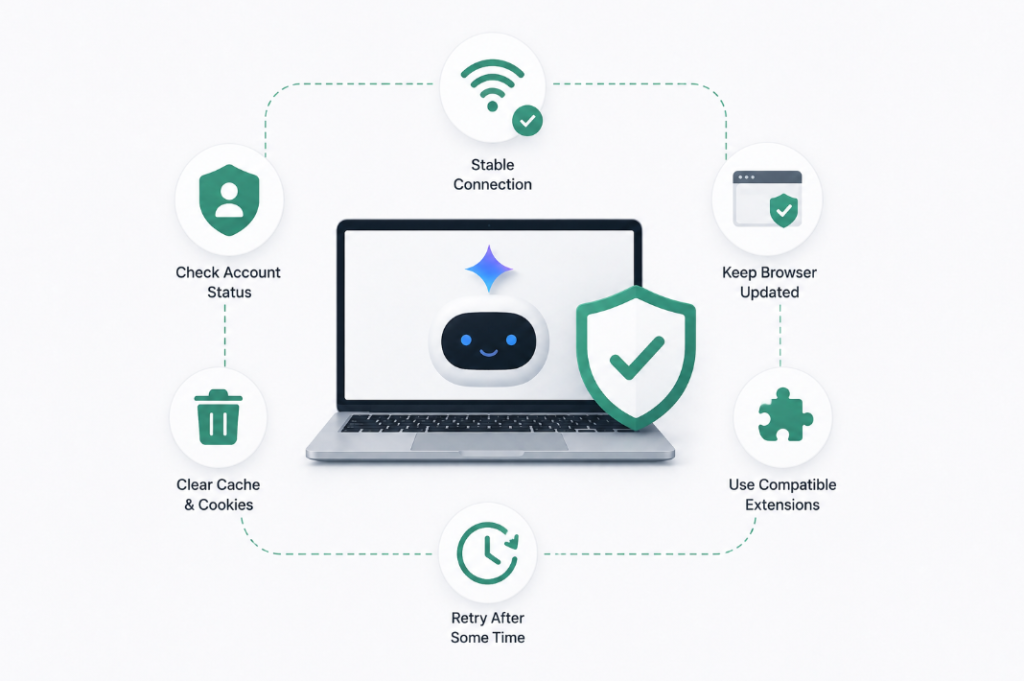
While error 1152 is usually easy to fix, a few simple habits can help reduce the chances of seeing it again.
Keep Your Browser Updated
Make sure your browser—especially Google Chrome—and operating system are up to date. Gemini is constantly evolving, and older browser versions can sometimes cause compatibility issues.
Use a Stable Internet Connection
Gemini works best on a reliable connection. If you regularly use it for work, research, or coding, a stable broadband connection is usually more dependable than unstable public Wi-Fi or weak mobile data.
Avoid Sending Too Many Heavy Prompts at Once
Large prompts, rapid-fire requests, or multiple back-to-back queries can sometimes overload the session and increase the chances of timeouts.
If you’re working on complex tasks, give Gemini a few seconds between prompts instead of sending everything at once.
Keep Browser Extensions to a Minimum
Too many extensions running in the background can interfere with how Gemini loads.
Ad blockers, privacy tools, and script blockers are the most common culprits. If you use them, consider allowing gemini.google.com so Gemini can load properly.
Clear Cache Occasionally
Over time, cached files and old cookies can create session conflicts.
You don’t need to clear them daily, but doing it occasionally helps keep your browser running smoothly—especially if you use Gemini often.
Check Google’s Status During Major Issues
Sometimes the issue isn’t on your side at all.
Before spending time troubleshooting, it’s worth checking Google Workspace Status or Downdetector to see if others are reporting problems.
Common Mistakes to Avoid
One mistake many users make is refreshing Gemini over and over when the error appears.
If a simple refresh doesn’t solve the issue, repeated reloading usually won’t help. It’s better to move on to the next troubleshooting step.
Conclusion
The Gemini Pro “Something went wrong (1152)” error is frustrating, but it’s rarely a serious problem. In most cases, a hard refresh, cache clear, or extension disable is all it takes to get back on track.
Here’s a quick recap of what to do:
- Hard refresh first
- Clear cache and cookies if it persists
- Test in incognito to rule out extensions
- Disable VPN if active
- Check Google’s server status before over-troubleshooting locally
- Re-login if the session appears expired
- Wait 15–30 minutes if you’ve been using Gemini heavily
Error 1152 is almost always temporary. Whether it stems from a brief server hiccup, a stale session, or a browser conflict, the fixes above cover the full range of causes. Bookmark this page so you’re ready the next time Gemini decides to be uncooperative.
Frequently Asked Questions
What does Gemini error 1152 mean?
Error 1152 is a generic failure code that appears when Gemini can’t complete a session or request. It can be caused by server issues, authentication problems, browser conflicts, VPN interference, or rate limiting.
Is Gemini error 1152 a server problem or a user problem?
Both are possible. Check Google’s server status page first. If no outage is reported, the issue is likely local — start with clearing your cache and disabling extensions.
How long does Gemini error 1152 last?
If caused by a server outage, typically 30–90 minutes. If caused by a local browser issue, it usually resolves within minutes after applying the right fix.
Does error 1152 affect Gemini Advanced specifically?
Error 1152 can appear on both the free version and Gemini Advanced. Advanced users hitting rate limits are more likely to see it during heavy API or workflow usage.
Will clearing cache delete my Gemini conversations?
No. Your Gemini conversation history is stored in your Google account, not your browser cache. Clearing cache and cookies only removes local session data.
Can a VPN cause Gemini error 1152?
Yes. VPNs can reroute traffic in ways that Google’s systems flag as suspicious, breaking your Gemini session. Disable the VPN and reload Gemini to test this.
What’s the fastest fix for Gemini error 1152?
Try a hard refresh first (Ctrl + Shift + R). If that fails, open Gemini in an incognito window. These two steps resolve the majority of cases within seconds.
How do I know if Google Gemini is down?
Visit workspace.google.com/status or check downdetector.com/status/google for real-time status reports and user-submitted outage data.