
Working with the Google Gemini CLI is usually seamless, but hitting a quota exceeded error can grind your workflow to a halt. The 429 “Too Many Requests” error is frustrating, especially when you’re in the middle of important tasks like batch processing, testing, or developing AI-powered applications.
If you’re seeing this error, you’re not alone. Developers encounter API rate limiting every day, and the good news is that it’s almost always fixable. Understanding what triggered the error and how to resolve it will get you back on track quickly.
This guide walks you through exactly what this error means, why it happens, and the most effective ways to fix and prevent it.
Quick Answer Box
What is the Gemini CLI 429 error?
It means you’ve exceeded your API quota or hit Google’s rate limits on requests.
Why does it happen?
You’re sending too many requests in a short time period, or your monthly API quota has been consumed.
Fastest fix: Wait a few minutes before retrying, then implement request throttling or increase your API quota limits in Google Cloud.
What Is the Google Gemini CLI Quota Exceeded Error?
The 429 error is an HTTP status code that signals “Too Many Requests.” When you see this error in your Gemini CLI output, Google’s API is telling you that your current request pattern has exceeded the allowed limits.
This isn’t a bug or a crash. It’s a protection mechanism. Google implements rate limiting and quota systems to:
- Prevent API abuse
- Maintain service stability
- Ensure fair resource allocation across all users
- Protect against bot traffic and malicious requests
The error typically appears as:
Error 429: Quota Exceeded
Too Many Requests
Rate Limit Exceeded
Different variations may display slightly different messages, but they all indicate the same underlying issue: you need to slow down your requests or upgrade your quota allowances.
Why Does This Error Occur?
The 429 error stems from a few predictable sources. Understanding which one applies to you makes fixing it much faster.
Request Rate Limits
Google Gemini API enforces per-minute rate limits on how many requests you can make. If you’re sending requests faster than the allowed threshold, you’ll trigger this error. This is the most common cause for developers running scripts, automations, or batch operations.
Monthly Quota Exhaustion
Beyond per-minute limits, you also have a monthly usage quota. This depends on your billing plan and tier. Once you hit this ceiling, all requests fail with a 429 error until your quota resets or you upgrade your plan.
Billing Account Issues
If your billing account is inactive, has failed payments, or isn’t properly configured, Google will enforce stricter limits or block requests entirely.
Concurrent Request Spikes
Running multiple scripts simultaneously or triggering rapid successive API calls can spike your request count unexpectedly. This is especially common when:
- Testing automation scripts
- Running batch processing jobs
- Using multiple CLI instances at once
API Configuration Problems
Misconfigured API keys, incorrect authentication tokens, or expired credentials can sometimes result in request throttling as a safety measure.
Infrastructure Changes
If you recently increased traffic, scaled up your application, or changed your request patterns, you may have inadvertently crossed quota thresholds.
How to Fix the Google Gemini CLI Quota Exceeded Error
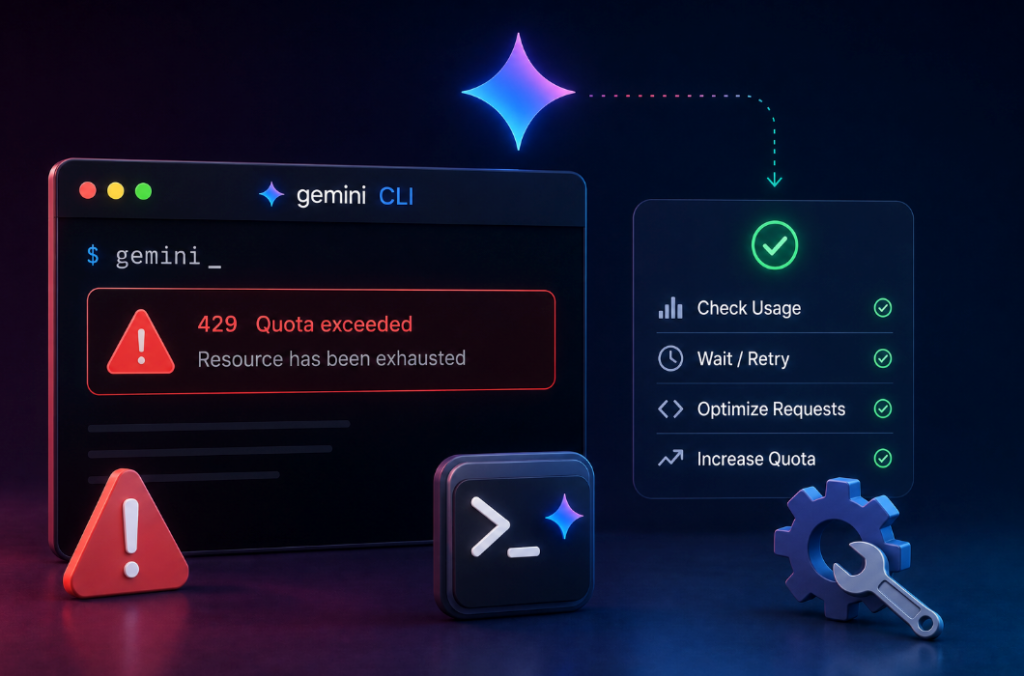
Follow these solutions in order. Most users resolve the issue with the first two steps.
1. Wait and Retry
The simplest solution works most of the time.
What to do:
- Stop sending requests immediately
- Wait 60 seconds (or longer if the error persists)
- Retry your request
Why it works:
Rate limits are time-based. Waiting allows your request count to “reset” as the system recalculates your usage window.
When to use it:
If you just started seeing errors and haven’t been running heavy operations, this is your first move.
2. Check Your Current Quota Status
What to do:
- Open Google Cloud Console
- Navigate to “APIs & Services” > “Quotas”
- Filter for “Gemini API” or “Generative Language API”
- Review your current usage versus limits
Why it works:
You’ll see exactly how much quota you’ve consumed and identify whether you’re hitting hard limits or just temporary rate throttling.
When to use it:
Always check this second. It clarifies whether your issue is temporary or requires quota increases.
3. Implement Request Throttling
What to do:
Add delays between API requests in your code.
Wait 1-2 seconds between each request
Set maximum concurrent requests to 5 or fewer
Implement exponential backoff for retries
Why it works:
Spreading requests over time keeps you under per-minute rate limits while still getting your work done.
When to use it:
If you’re running scripts or automation. This prevents future errors even without changing your quota.
4. Upgrade Your API Quota
What to do:
- Go to Google Cloud Console > APIs & Services > Quotas
- Select the Gemini API quota that’s maxed out
- Click “Edit Quotas” and request a higher limit
- Google typically approves reasonable increases within hours
Why it works:
You’re simply increasing the ceiling on how many requests you’re allowed per minute or month.
When to use it:
If you need to maintain current request speeds and throttling isn’t an option.
5. Check Your Billing Account
What to do:
- Go to Google Cloud Console > Billing
- Verify your billing account is active
- Confirm payment methods are valid
- Check for any billing alerts or restrictions
Why it works:
Inactive or restricted billing accounts trigger stricter rate limiting.
When to use it:
If you’ve changed payment methods recently or if your account has been inactive.
6. Verify Your API Key and Authentication
What to do:
- Generate a fresh API key in Google Cloud Console
- Replace the old key in your Gemini CLI configuration
- Authenticate again and test a single request
- Delete the old key if you’re not using it elsewhere
Why it works:
Expired or misconfigured credentials can sometimes result in quota enforcement issues.
When to use it:
If none of the above solutions work.
7. Reduce Concurrent Operations
What to do:
If running multiple scripts simultaneously:
- Close unused CLI instances
- Run one batch job at a time
- Disable parallel processing temporarily
Why it works:
Fewer concurrent requests equals lower usage rates.
When to use it:
If you’re running heavy operations across multiple processes or servers.
How to Prevent This Error
Prevention is easier than troubleshooting once an error occurs.
Monitor Your Usage Regularly
Check your quota dashboard weekly. Track whether you’re trending toward limits. Set alerts in Google Cloud for quota usage above 70%.
Implement Smart Rate Limiting in Code
Use request queuing libraries or built-in rate limiting to space out API calls naturally.
Batch Your Requests Efficiently
Group related requests into single batch operations where possible. This reduces total request count while accomplishing the same work.
Use API Caching
Cache responses for identical requests. This prevents redundant API calls and dramatically reduces quota consumption.
Scale Gradually
When increasing traffic or adding new features, test quota impact in development first. Don’t launch major changes without reviewing projected API costs.
Optimize Prompt Engineering
Complex or inefficient prompts sometimes require retry logic, which multiplies requests. Well-crafted prompts reduce errors and unnecessary retries.
Keep Billing Updated
Ensure your payment method is current and your billing account has no restrictions. Review your plan tier quarterly.
Best Practices and Expert Tips
The Exponential Backoff Strategy
When implementing retries, don’t retry immediately. Use exponential backoff: wait 1 second, then 2, then 4, then 8. This prevents overwhelming the API further and increases success rates significantly.
Separate Development and Production Keys
Use different API keys for testing and production. Your development key can have a lower quota, preventing accidental quota exhaustion in production.
Monitor Error Patterns
If you’re seeing 429 errors sporadically, it’s likely per-minute rate limiting. If it suddenly stops working entirely, you’ve hit monthly quotas. These patterns guide your response.
Use Google Cloud Monitoring
Set up Cloud Logging and Monitoring dashboards to track API errors before they become problems. Alerting on rising error rates lets you react proactively.
Calculate Your Quota Needs
Know your expected request volume. If you need 10,000 requests per day, ensure your quota supports that. Most quota increases are approved automatically if reasonable.
Limitations and Important Considerations
Server-Side Rate Limiting Persists
Even if you increase your quota, Google maintains server-side rate limits that can’t be changed. These are typically generous but non-negotiable.
Quotas Reset on Specific Schedules
Monthly quotas reset on the first of the month (UTC). If you’re near the limit, you can’t accelerate a reset.
Some Errors Require Support
If you believe rate limiting is a mistake or you’re hitting unexplained limits despite low usage, contact Google Cloud Support. They can investigate account-specific restrictions.
Batch Operations Have Separate Limits
If using Gemini API for batch processing, batch operations may have their own quota tracks separate from standard requests.
Final Verdict
The 429 “Quota Exceeded” error is one of the easiest API errors to resolve. In most cases, simply waiting a minute and retrying solves it immediately. If the problem persists, check your quota status in Google Cloud Console and either implement request throttling or request a quota increase.
For long-term success, monitor your usage patterns, implement smart rate limiting in your code, and keep your billing account active. These preventive measures ensure you rarely encounter this error again.
Your next step: Check your quota status now, implement basic request throttling if you’re running automation, and set a calendar reminder to review your API usage monthly.
Frequently Asked Questions
What exactly does error 429 mean?
It means you’ve exceeded the allowed number of requests within your time window or monthly quota. Google is temporarily blocking further requests as a protective measure.
How long before I can retry after seeing a 429 error?
Wait at least 60 seconds. For monthly quota exhaustion, wait until your quota resets (usually the next calendar month) or request an increase.
Is this error something Google Gemini has fixed?
No. Rate limiting is intentional, not a bug. Google uses it across all APIs. The “fix” is managing your requests within limits or increasing your quota.
Can I increase my quota instantly?
Usually, yes. Reasonable quota increase requests are approved within hours or a few days. However, monthly quota resets on fixed schedules you can’t accelerate.
Does clearing my CLI cache fix this error?
Only if the error was caused by corrupted configuration. Clearing cache won’t resolve quota issues, which are server-side.
Why am I hitting limits with low usage?
Possible causes: billing account issues, API key misconfigurations, concurrent requests you didn’t realize were happening, or free tier limits if you’re not on a paid plan.
Does upgrading to a higher Google Cloud tier remove rate limits?
It increases them, but doesn’t remove them entirely. Even paid plans have rate ceilings designed to prevent abuse.
What’s the difference between rate limits and quotas?
Rate limits control requests per minute. Quotas control total usage per month. You can hit both separately.
Can I be permanently blocked for hitting 429 errors?
Hitting rate limits repeatedly won’t get you blocked. However, aggressive abuse (bot-like behavior) can trigger account suspension.
Do I lose data when I get a 429 error?
No. 429 errors are rejected requests. Only failed requests are lost. Completed operations are safe.