
You are mid-session, deep in a coding flow, and suddenly, Cursor throws a “Too Many Requests” error and stops responding. No warning, no clear explanation — just a wall between you and your work.
This is one of the most common frustrations for Cursor users, and it happens at the worst possible moments. The good news is that it almost always has a straightforward fix, and in most cases you will be back up and running within minutes.
This guide breaks down exactly what the Cursor too many requests error means, why it happens, and what you can do right now to fix it — whether you are a developer who uses Cursor daily or someone who just ran into this for the first time.
Quick Answer
The Cursor too many requests error (sometimes shown as a 429 error) means you have exceeded the number of AI requests allowed within a certain time window. Cursor limits how frequently users can call its underlying AI models to prevent server overload and manage costs. The fastest fix is to wait 60 to 90 seconds and retry. If the error persists, re-login to your account, check Cursor’s server status, or consider upgrading your plan if you are on a free tier.
What Is the Cursor AI Too Many Requests Error?
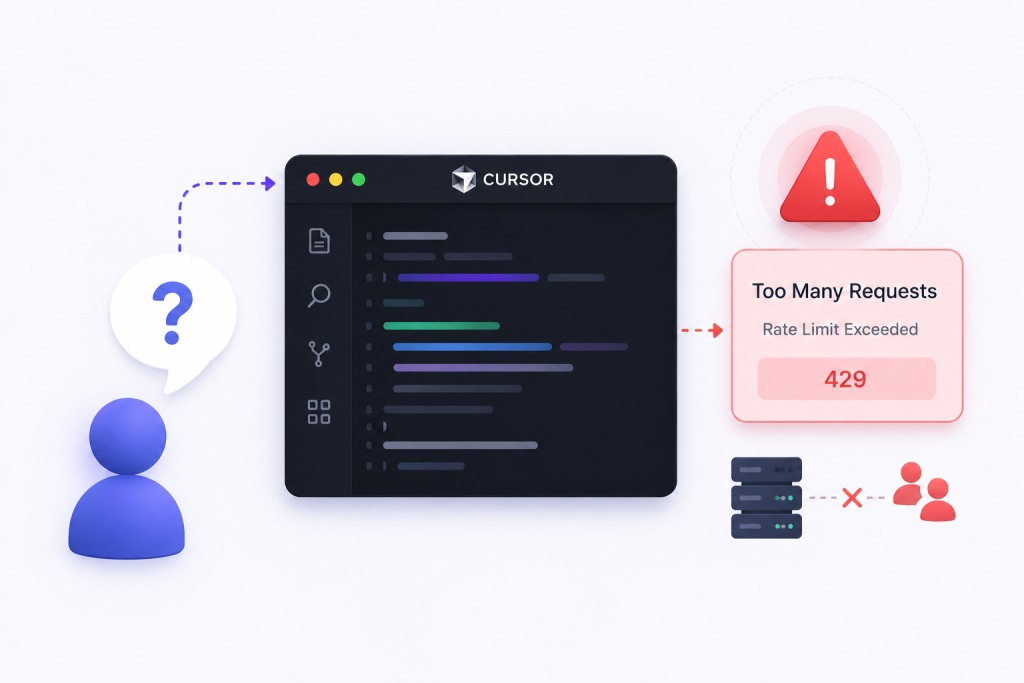
When Cursor returns a “Too Many Requests” message, it is communicating a very specific thing: your account or session has sent more AI-powered requests than the system allows within a defined period. This is technically known as HTTP 429, a standard web response code that means rate limiting is in effect.
Cursor relies on large language models running on backend infrastructure — typically models from Anthropic or OpenAI. Every time you ask Cursor to write code, explain something, or make an edit, it sends a request to these models. Those models are not unlimited resources, and the service puts usage caps in place to manage traffic, prevent abuse, and keep performance stable for all users.
Think of it like a busy coffee shop with a limited number of baristas. If everyone orders at the same time, the line stops moving. Rate limiting is Cursor’s way of managing that line. It is not a bug — it is an intentional backend service limitation designed to protect system stability.
Why Does the Cursor AI Rate Limit Error Occur?
Understanding the cause helps you find the right fix faster. Here are the most common reasons this error appears.
Sending too many prompts in quick succession. If you are rapidly firing off AI requests — autocomplete calls, chat messages, inline edits — Cursor’s system registers these as excessive API calls and temporarily blocks further requests from your session.
Free plan usage caps. Cursor’s free tier comes with a limited number of requests per day or per billing cycle. Once you hit that cap, you will see this error until the quota resets or you upgrade.
Concurrent requests running simultaneously. Running multiple Cursor windows, having multiple AI tasks active at the same time, or using Cursor alongside other AI tools that share the same API key can push you over the limit much faster than expected.
An expired or broken login session. Sometimes an authentication issue causes the system to misread your account tier or fail to validate your subscription, which triggers artificial usage restrictions even when your actual usage is normal.
Browser or application cache conflicts. Stale cache data can cause incorrect request headers to be sent, which the server misinterprets or rejects — especially in the web version of Cursor.
Server-side load spikes. During peak usage periods, Cursor’s infrastructure can experience broader throttling that affects users even within their normal usage patterns. This is a platform-side limitation rather than anything you triggered.
Network instability. Unstable connections can cause requests to fail and automatically retry in the background without you knowing, stacking up multiple calls that together exceed the rate limit.
How to Fix Cursor AI Too Many Requests Error
Work through these fixes in order. The first few resolve the issue for most users.
1. Wait and retry after 60 to 90 seconds.
This is the simplest fix and works surprisingly often. Rate limits are usually temporary and reset automatically after a short cooldown period. Step away from Cursor for a minute, then try your request again. If you have been sending prompts rapidly, this break gives the backend time to clear the restriction on your account. Most temporary usage restrictions lift within one to two minutes.
2. Refresh or restart Cursor.
Close the application completely and reopen it. A full restart clears the active session, resets pending request queues, and often resolves transient rate limit errors caused by session-level issues. If you are using the web version, do a hard refresh (Ctrl + Shift + R on Windows, Cmd + Shift + R on Mac) rather than a standard page reload.
3. Re-login to your account.
Log out of Cursor and sign back in. This refreshes your authentication token and re-establishes your session with the correct account permissions and subscription tier. An expired session is a commonly overlooked cause of this error, especially if you have not closed and reopened the application in several days.
4. Check Cursor’s server status.
Before spending time troubleshooting on your end, visit Cursor’s official status page to confirm the service is fully operational. If there is an ongoing incident or maintenance window affecting AI features, no local fix will resolve the issue. You will simply need to wait for the platform to recover. Cursor typically updates its status page within minutes of a known outage.
5. Clear cache and cookies.
For the web version of Cursor, clearing browser cache and cookies removes any corrupted session data that might be causing request failures. In Chrome, go to Settings > Privacy and Security > Clear browsing data. Select cached images and files plus cookies, then clear data. Relaunch Cursor after this step.
6. Reduce your request frequency.
If you have been sending prompts rapidly or have multiple AI-assisted tasks running at once, slow down intentionally. Give each request time to complete before sending the next. Avoid opening multiple Cursor windows simultaneously. Reducing concurrent requests is one of the most effective ways to stay within the allowed usage window without changing any settings.
7. Check your subscription plan and usage quota.
Open your Cursor account settings and check how much of your monthly or daily quota you have used. Free plan users hit their request limit faster than Pro or Business users. If you are consistently running into this error, your usage may have genuinely outgrown your current plan. Upgrading gives you a significantly higher request limit and reduces how often you encounter throttling.
8. Contact Cursor support.
If none of the above fixes work and the error persists across sessions and devices, reach out to Cursor’s official support team. Provide your account email, a description of when the error occurs, and any error codes you see. Some account-level issues — such as incorrect plan detection or backend billing sync errors — require manual intervention from the support team.
How to Prevent This Error
The best way to handle rate limiting is to avoid triggering it in the first place. A few workflow adjustments go a long way.
Space out your prompts intentionally. Rather than sending five quick follow-up messages, consolidate your request into one well-structured prompt. This reduces the total number of API calls while often producing a better result.
Monitor your usage dashboard regularly. Cursor’s account settings show your current usage against your plan limit. Checking this once a week helps you anticipate when you are approaching the cap before the error hits mid-session.
Keep Cursor updated to the latest version. Older versions sometimes have inefficiencies that cause unnecessary background requests, which eat into your quota without you realizing it.
Avoid running AI-heavy tasks in parallel. If you are using Cursor for code generation while also running automated tests or other AI processes, each of those background tasks contributes to your request count.
Use targeted, specific prompts. Vague prompts often require follow-up corrections, which means more requests. A precise, context-rich prompt typically gets the job done in one call instead of three.
Expert Tips
One thing most troubleshooting guides skip: Cursor’s autocomplete feature runs in the background constantly while you type. Even if you are not actively sending chat messages, the editor is making frequent AI calls to generate inline suggestions. If you are close to your usage limit, disabling autocomplete temporarily can buy you significant headroom for more important requests.
Another overlooked trigger is leaving Cursor idle with an active AI context window open. Some versions continue making background context-refresh calls even when you are not actively working. Closing unused tabs or AI panels when not in use reduces this background noise.
If you are on a team using Cursor with a shared API key, a single heavy user on the team can exhaust the shared limit for everyone. In that scenario, moving to individual API key assignments or a Business plan with higher per-seat limits is the right long-term fix.
When Fixes May Not Work
It is important to set realistic expectations. If Cursor is experiencing a platform-wide outage, or if the AI model provider (Anthropic or OpenAI) is having infrastructure issues, no local fix will resolve the rate limit error. These are server-side outages outside your control.
Similarly, if you are a high-volume user on a free plan and have legitimately exhausted your quota, the only resolution is to wait for the quota to reset (usually at the start of a new billing cycle) or upgrade your plan. There is no workaround that bypasses a genuine usage cap.
Conclusion
The Cursor too many requests error is frustrating, but it is almost always fixable. For most users, waiting a minute and restarting Cursor is all it takes. If that does not work, re-logging into your account and checking your usage quota usually does the trick.
The bigger picture here is workflow management. Cursor is an AI-powered tool running on shared infrastructure, and understanding how its rate limits work helps you use it more efficiently. Space your prompts, keep the app updated, monitor your quota, and you will run into this error far less often.
If you are hitting the limit regularly despite these steps, it is worth evaluating whether your usage has genuinely outgrown your current plan. Upgrading to a Pro or Business tier gives you substantially more headroom and removes this friction from your daily workflow.
Frequently Asked Questions
Why am I getting the Cursor AI too many requests error?
You have exceeded the number of AI requests your plan allows within a given time window. This can happen from rapid prompting, background autocomplete calls, or simply reaching your daily or monthly quota.
Is Cursor AI down when I see this error?
Not necessarily. The error usually means your account has hit a rate limit, not that the service is down. Check Cursor’s status page to confirm whether there is a platform-wide issue.
How long does the Cursor rate limit last?
Most rate limits reset within 60 to 90 seconds for temporary throttling. If you have hit your plan’s usage cap, it resets at the start of your next billing cycle.
Can I fix this without upgrading my plan?
Yes, in most cases. Waiting, restarting, re-logging in, and reducing request frequency resolve the error without requiring a plan change. Upgrading is recommended only if you consistently hit the limit.
What is a 429 error in Cursor?
HTTP 429 is the standard status code for “Too Many Requests.” It means the server is rate limiting your account to manage API load and prevent system overload.
Does clearing cache fix the Cursor rate limit error?
It can help if the issue is tied to a corrupted session or stale cookie data, particularly in the browser version of Cursor. It will not fix a genuine usage cap.
Why does this happen even when I have a paid plan?
Paid plans have much higher limits, but they are not unlimited. High-volume usage, concurrent requests, or background activity can still trigger rate limiting even on Pro or Business plans.
Can I prevent this error permanently?
You cannot eliminate it entirely, but you can significantly reduce how often it occurs by spacing out prompts, disabling background autocomplete when not needed, and monitoring your usage quota regularly.
Does restarting my computer fix this?
It can help if the issue is caused by network instability or a stuck application state, but a full system restart is rarely necessary. Simply restarting Cursor or re-logging in usually achieves the same result.
Should I contact support if the error keeps coming back?
Yes. If the error persists after trying all standard fixes and your usage appears to be within your plan limits, contact Cursor support. There may be an account-level sync issue or a backend problem that requires their intervention.