Adobe Photoshop is a powerful industry standard, but its subscription cost isn’t ideal for everyone. Thankfully, there are now excellent free and one-time purchase alternatives that offer professional-grade editing without the ongoing monthly expense.
In 2026, the landscape has shifted. Affinity Photo 2 remains one of the best Photoshop alternatives thanks to its powerful feature set and one-time purchase model, while excellent free options like Photopea, GIMP, and Krita give users professional-grade editing without a monthly subscription.
This guide reviews 10 vetted alternatives—free and paid—tested across real workflows. Whether you need free Photoshop alternatives for users who need to edit PSD files online or professional-grade photo editing software, we’ve covered the options.
How We Selected These 10 Alternatives
We didn’t compile a random list. Our selection methodology focused on three criteria:
1. Real-world workflow viability: Each tool had to handle actual professional tasks, RAW editing, layer compositing, batch processing, or specialized workflows, not just basic filters.
2. User adoption and community: Tools with active communities, regular updates, and proven user bases ranked higher. We avoided abandoned projects or tools with single-feature use cases.
3. Feature-to-cost ratio: We weighed capabilities against pricing, including total cost of ownership over 5 years compared to Adobe’s subscription.
Research sources: We analyzed 20+ recent reviews from professional creators, tested free trial versions, reviewed pricing changes through 2026, and evaluated feature updates from developer roadmaps.
The result? 10 tools spanning free desktop, browser-based, and premium options covering 95% of image editing use cases.
The 10 Best Photoshop Alternatives
1. Affinity Photo 2
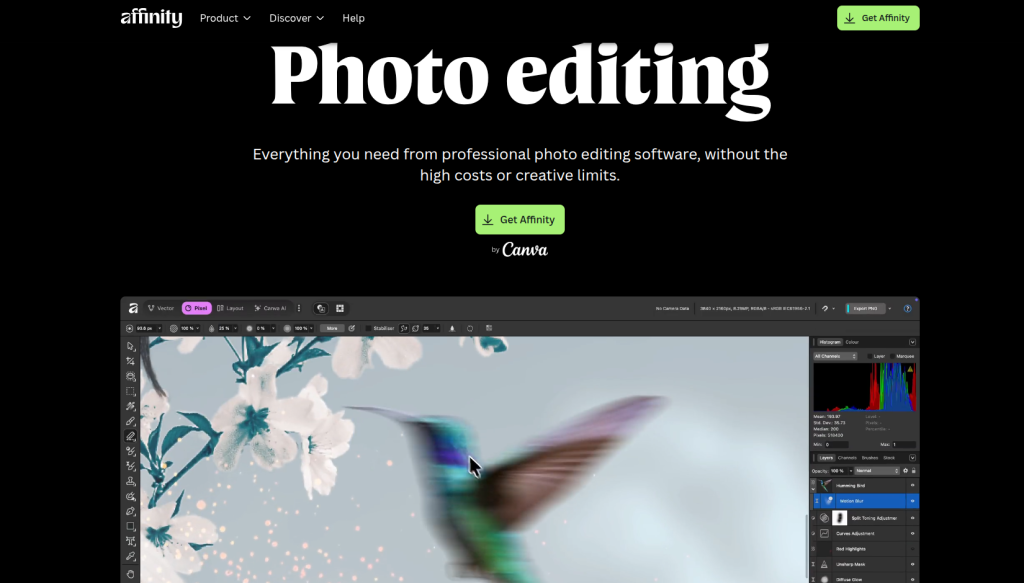
Who it’s best for: Professional photographers, graphic designers, digital artists needing Photoshop-level power without subscriptions.
Affinity Photo 2 is one of the strongest Photoshop alternatives available, offering professional-grade RAW editing, advanced layer support, and excellent PSD compatibility through a one-time purchase instead of a subscription. Following Canva’s acquisition of Serif, the Affinity suite has continued active development and remains a popular choice among photographers and designers.
Key Features:
- Full RAW photo development for photographers
- Non-destructive adjustment layers
- Advanced masking and selection tools
- Professional retouching (healing, cloning)
- Excellent PSD compatibility
- Available on Windows, macOS, and iPad with full feature parity
Workflow strength: If you’ve used Photoshop, Affinity’s interface feels familiar. You’re productive within days, not weeks.
Pros: Pros: One-time purchase. Professional-grade editing tools. No ongoing subscription. Excellent PSD compatibility. Available on Windows, macOS, and iPad.
Cons: Plugin ecosystem smaller than Photoshop’s. Steeper learning curve than Canva or Pixlr.
Best for: Anyone previously paying for Photoshop or considering it. Professionals tired of subscriptions.
2. Photopea (Free Browser-Based)
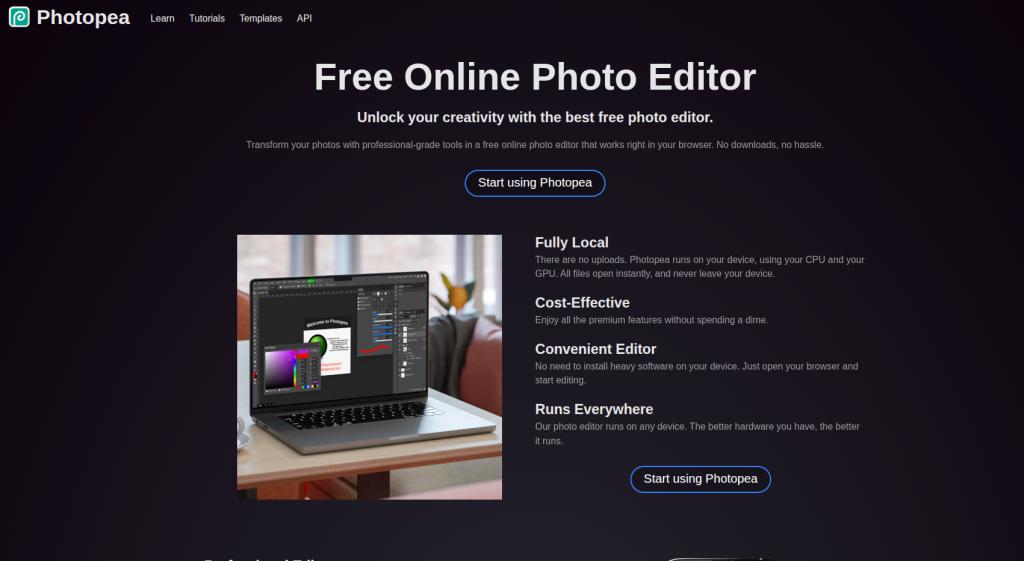
Who it’s best for: Designers collaborating with Photoshop users, freelancers editing across devices, anyone needing quick PSD edits.
Photopea is free and accessible online without installation, supports PSD, AI, XD, and multiple file formats, has a Photoshop-like interface making it easy for designers, and works on any device with a browser.
Key Features:
- Opens and saves PSD files natively (preserving layers, smart objects)
- Supports Illustrator (.ai), Adobe XD (.xd), Sketch files
- Photoshop keyboard shortcuts
- Free tier is fully functional
- Zero installation needed
Workflow strength: Speed. Launch it instantly. Edit. Export. No software bloat.
Pros: Browser-based (works everywhere). Excellent PSD support. Fast for quick edits. Free.
Cons: Performance lags with very large files. Free version shows ads. Requires internet connection.
Best for: Remote teams. Quick edits. PSD compatibility emergencies.
3. Krita (Free Desktop)
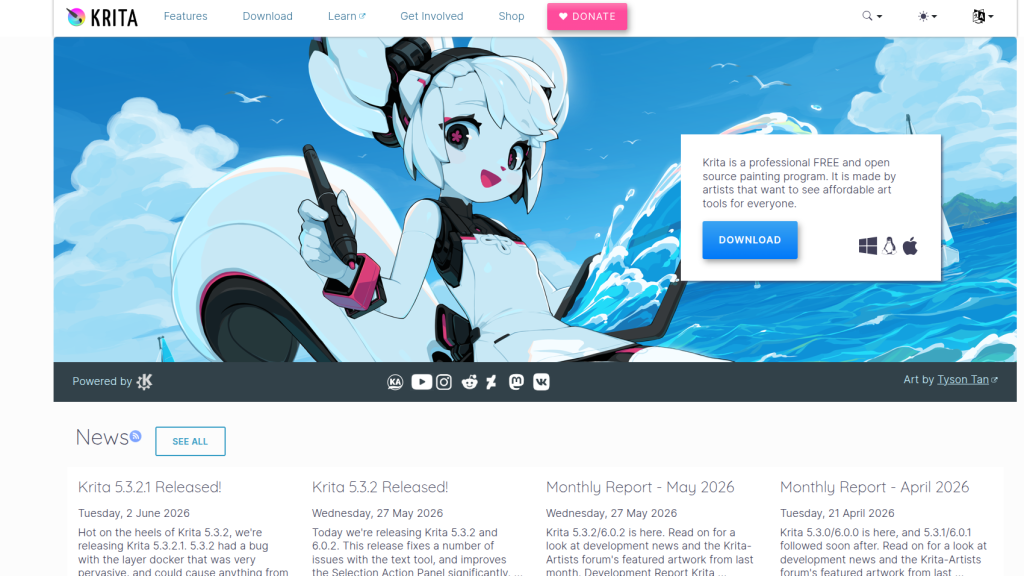
Who it’s best for: Digital artists, illustrators, concept artists creating artwork from scratch. Not primarily a photo editor.
Krita is the best free alternative to Photoshop for digital artists and illustrators, offering professional-grade brush engines, animation tools, and a workspace designed specifically for painting rather than photo editing.
Key Features:
- Professional brush engine with thousands of customizable brushes
- Frame-by-frame animation support
- Vector and raster editing combined
- Stable Diffusion integration for AI-assisted concept art
- Built-in color management
- Completely open-source
Workflow strength: Artists report Krita’s brush engine surpasses Photoshop’s. The workspace is optimized for painting, not photo work.
Pros: Exceptional for illustration. Better brushes than Photoshop. Animation support. Free. Open-source.
Cons: Not ideal for photo retouching. Steeper curve for non-artists. Smaller community than Photoshop.
Best for: Digital painters. Illustrators. Concept artists. Animation creators.
4. Gimp (Free Desktop, Open-Source)
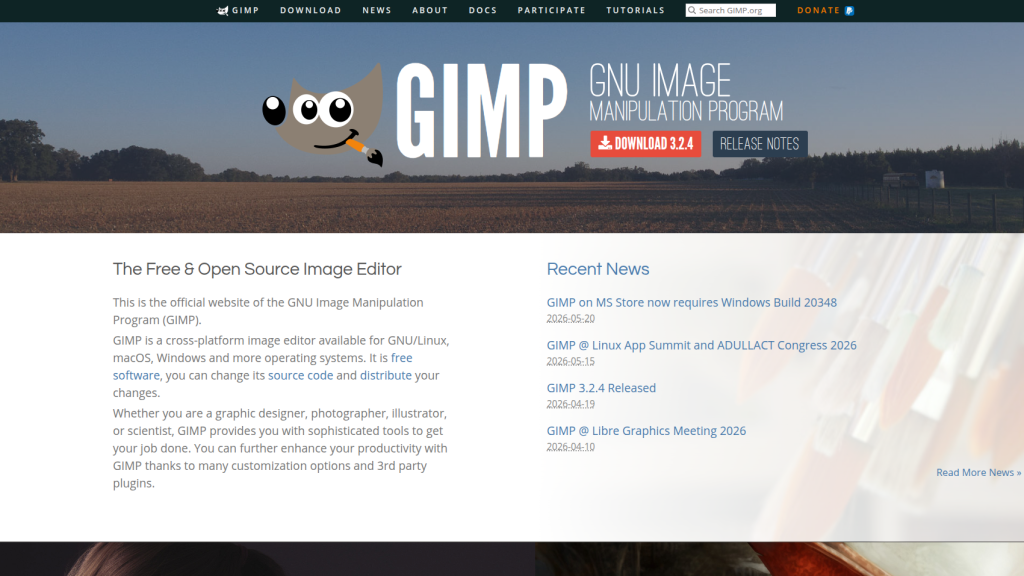
Who it’s best for: Power users wanting extensibility, designers comfortable with learning curves, open-source advocates.
GIMP is an open-source photo editor with an extensive collection of editing tools but can be difficult to use.
Key Features:
- Scriptable via Python and Script-Fu
- Extensive plugin and filter library
- Professional color management
- Support for all major file formats
- Customizable interface
- 30+ years of active development
Workflow strength: Automation. Want to resize 1,000 photos? Script it. Need a custom filter? Build it.
Pros: Powerful. Extensible. Open-source (transparent). Active community. No cost.
Cons: Steeper learning curve. Interface feels less intuitive than Affinity. Some features feel dated.
Best for: Workflow automation. Batch processing. Users prioritizing open-source and transparency.
5. Pixlr (Free Browser + Paid)
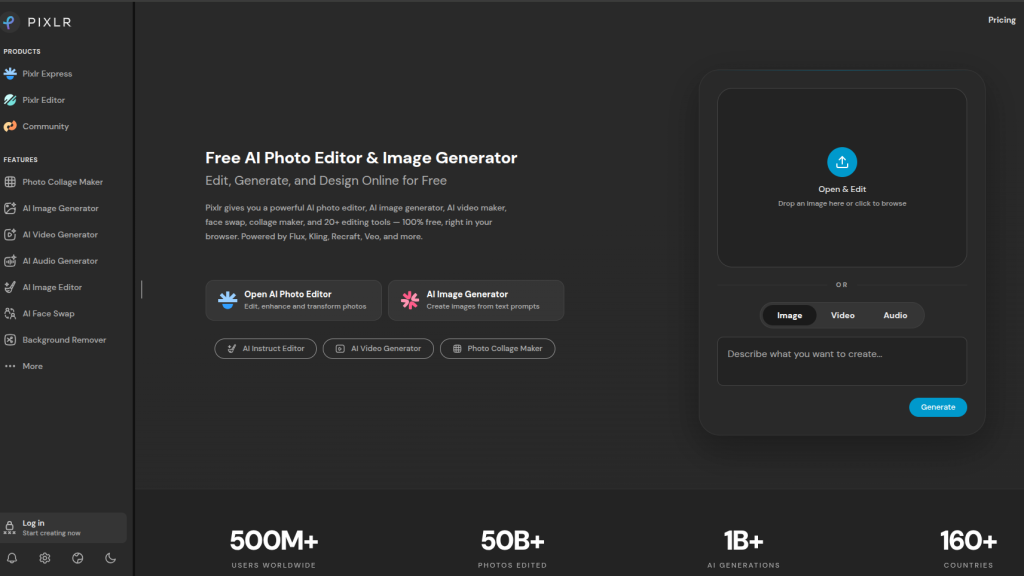
Who it’s best for: Beginners, social media creators, small business owners needing quick edits without installation.
Pixlr E is one of the most used browser-based free alternatives to Adobe Photoshop, with over 100 million users worldwide, featuring a toolbar-based interface, layers panel, blend modes, filters, adjustment tools, and AI-powered background remover.
Key Features:
- Layers panel with blend modes
- AI background removal
- AI object removal and smart fill
- Modern, intuitive interface
- Works on desktop, iPad, mobile
- New: AI image and video generation
Workflow strength: Accessibility. Intuitive interface welcomes non-designers. Results look professional.
Pros: Intuitive for beginners. No installation. AI-powered features. Works everywhere.
Cons: Free tier limited. Advanced AI features require paid credits. Not for detailed professional work.
Best for: Beginners. Social media creators. Quick edits.
6. Canva (Freemium)
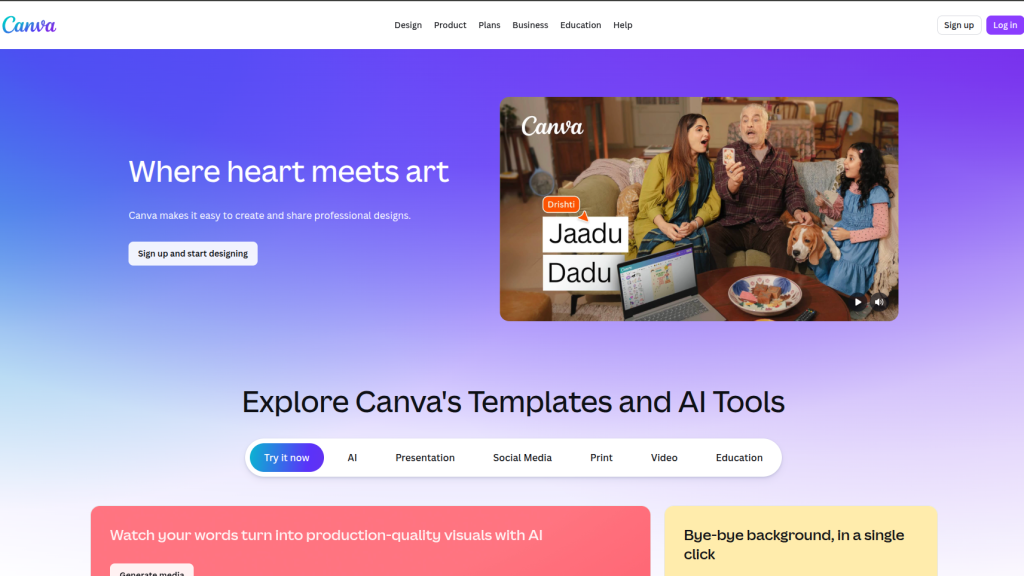
Who it’s best for: Content creators, marketers, small business owners producing social graphics and marketing materials. Not a detailed photo editor.
Canva is built for speed, offering drag-and-drop editing, thousands of templates, stock photos, graphics, fonts, background remover, AI design tools, brand kits, social media resizing, team folders, comments, and simple export options.
Key Features:
- 10,000+ professionally designed templates
- Drag-and-drop simplicity
- Stock photos, graphics, fonts built-in
- AI background removal and design suggestions
- Social media auto-resizing (30+ formats)
- Team collaboration with comments
- Brand kit management
Workflow strength: Templates. Most designs start as templates, not blank canvases. Canva wins here.
Pros: Fastest for marketing graphics. Templates. Simplicity. Team-friendly. Stock assets included.
Cons: Not for detailed photo retouching. Limited customization vs. Photoshop.
Best for: Social media managers. Marketers. Non-designers. Content creators.
7. Corel Paintshop Pro 2026 (Paid, Windows)
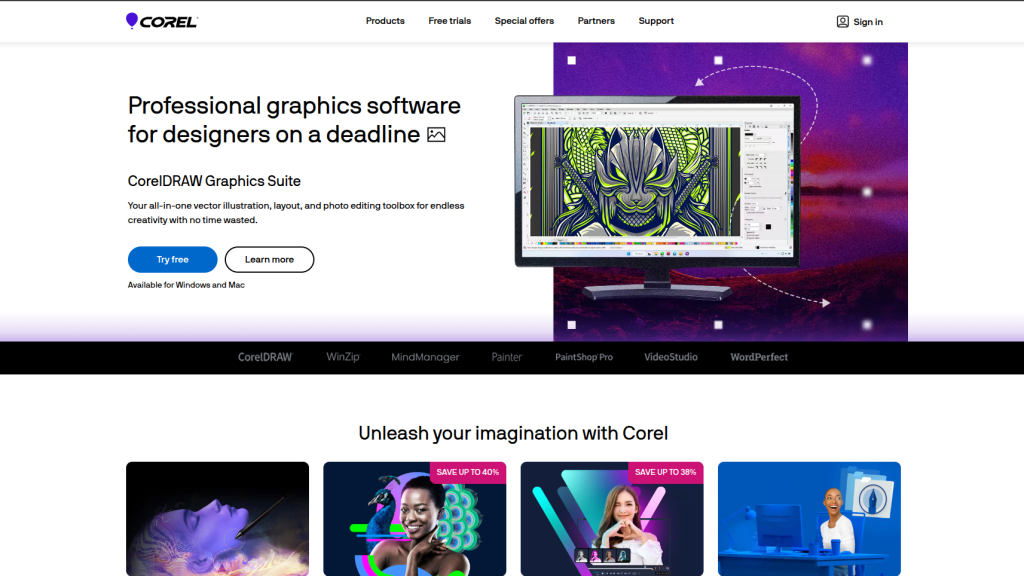
Who it’s best for: Windows users wanting professional features without subscriptions. One-time purchase appeals to budget-conscious professionals.
Corel PaintShop Pro 2026 costs $79.99 with no monthly subscriptions, which is a great benefit, while the Ultimate version costs $99.99 with more advanced features.
Key Features:
- Professional photo editing and retouching tools
- RAW file support
- Batch processing for multiple image editing
- Vector and raster editing combined
- Bonus software: Painter Essentials, PhotoMirage Express, Perfectly Clear
- Updates available at $60–80 (optional, not required)
Workflow strength: Windows-first design. Familiar Photoshop-like interface. Fast performance.
Pros: One-time purchase (no subscriptions). Affordable ($79.99). Professional features. Windows optimized.
Cons: Windows-only. Plugin ecosystem smaller. AI features not as polished as competitors.
Best for: Windows professionals on a budget. Users want permanent software ownership.
8. Luminar Neo (Paid, Ai-Focused)
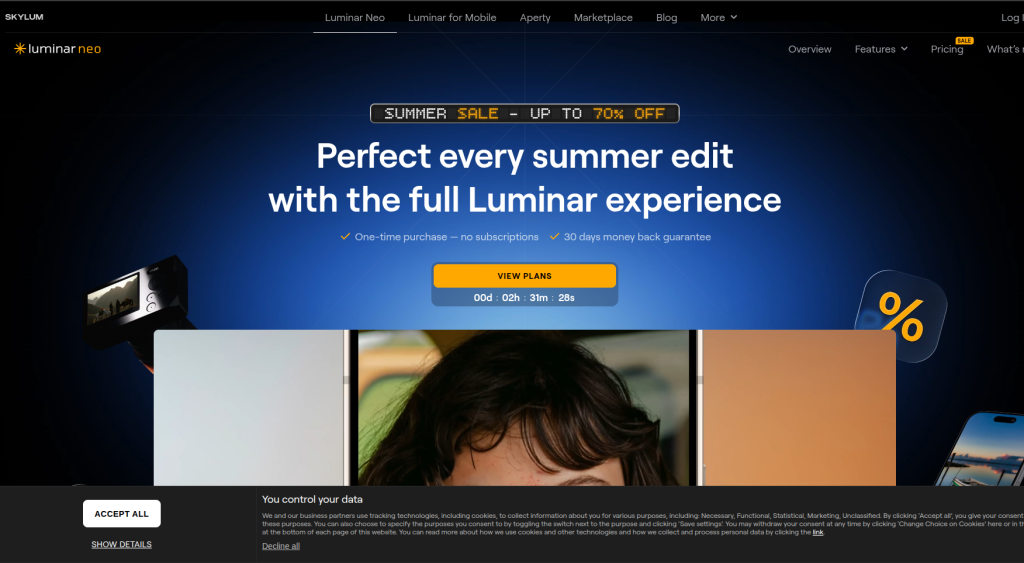
Who it’s best for: Photographers wanting AI-powered enhancements. Portrait and landscape photographers specifically.
Luminar Neo is an AI-powered photo editor designed to simplify complex editing tasks for photographers and creators. With intelligent tools for sky replacement, portrait enhancement, and RAW editing, it delivers professional-quality results in just a few clicks.
Key Features:
- AI-powered sky replacement
- One-click relighting and exposure correction
- AI background removal
- Portrait enhancement and skin retouching
- Generative expand (extend images with AI)
- RAW file support
- Extensive preset library
Workflow strength: Speed through AI. Professional results in clicks, not hours.
Pros: AI-powered results are genuinely impressive. RAW support. Presets accelerate workflow.
Cons: Requires learning the tool. AI sometimes over-processes. Not for manual control specialists.
Best for: Portrait and landscape photographers. Creators valuing speed.
Pricing: Free 7-day trial; paid plans typically $60–90 (varies by promotion).
9. Pixelmator Pro (Paid, Mac-Only)
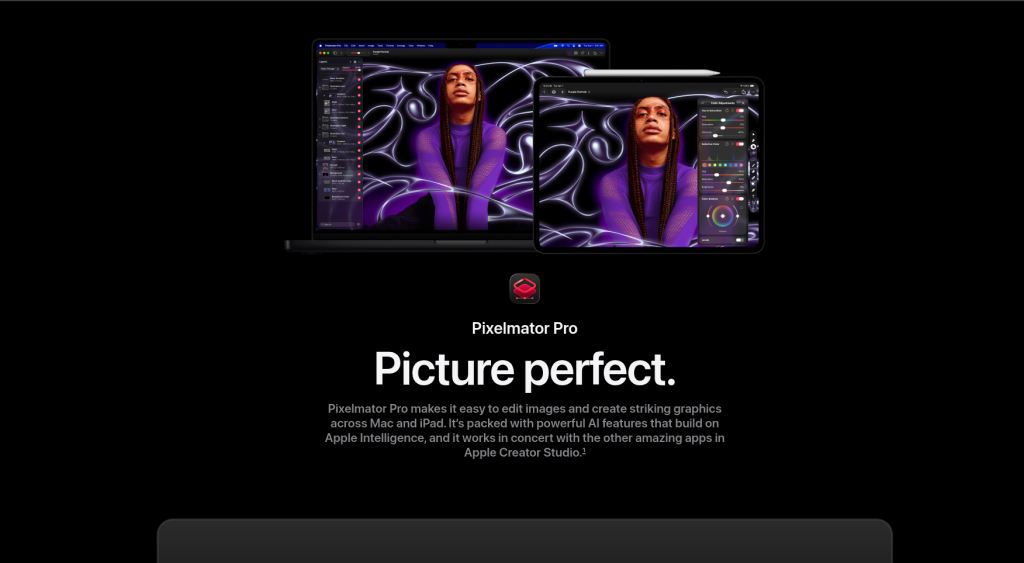
Who it’s best for: Mac users valuing elegance, speed, and native OS integration. Professional designers seeking simplicity.
Pixelmator Pro is a powerful image editor built exclusively for macOS, combining a clean interface with advanced machine learning features. Its fast performance and one-time purchase model make it a favorite among designers, photographers, and creative professionals.
Key Features:
- Native macOS interface
- Machine learning-powered object removal
- AI background removal
- One-time purchase ($49.99)
- Lightning-fast performance
- Handles 80% of workflows faster than web editors
Workflow strength: macOS native design. Feels like it was made for your Mac.
Pros: Fast. Elegant. One-time purchase. Native Mac integration.
Cons: Mac-only. Smaller community. No subscription flexibility.
Best for: Mac professionals. Users prioritizing speed and elegance over feature breadth.
Pricing: $49.99 one-time purchase.
10. Photoshop Elements 2026 (Beginner-Friendly Paid Option)
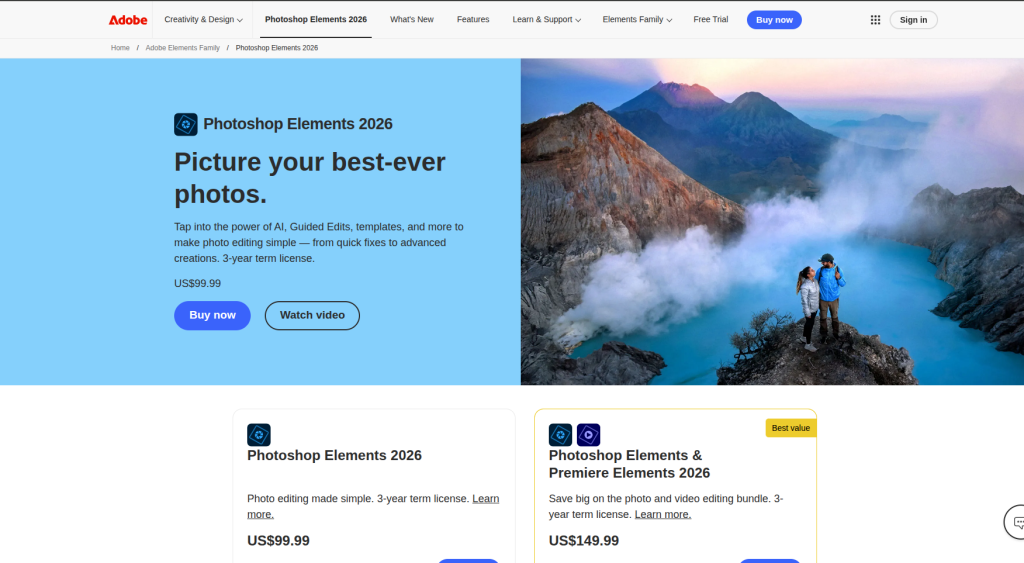
Who it’s best for: Hobbyists, family historians, casual photographers wanting guided learning while editing.
Adobe Photoshop Elements 2026 is a simplified version of Photoshop built for hobbyists, students, and casual photographers. It combines guided edits, AI-powered tools, and an easy-to-use interface to help beginners create polished images without a steep learning curve.
Key Features:
- Guided edits (step-by-step photo improvements)
- AI-powered auto enhancement
- Batch processing
- 2.5GB cloud storage
- Mobile and desktop versions
- Simplified interface vs. Photoshop
Workflow strength: Teaching. Guided edits are genuinely educational. Learn as you create.
Pros: Beginner-friendly. Educational. Affordable ($99.99 one-time).
Cons: Not professional-grade. Limited advanced features. Less powerful than full Photoshop.
Best for: Hobbyists. Students. Family photographers.
Pricing: $99.99 one-time purchase (includes mobile app).
Detailed Pricing Analysis: 5-Year Total Cost Comparison
Understanding total cost of ownership matters more than monthly price.
| Software | Type | Year 1 Cost | 5-Year Cost | Notes |
| Affinity Photo 2 | Desktop | $69.99 | $69.99 | One-time purchase. No subscription required. |
| GIMP | Desktop | $0 | $0 | Open-source. Completely free. |
| Krita | Desktop | $0–15 | $0–15 | Free. Optional $15 Steam donation. |
| Photopea | Browser | $0 | $0 | Free. Completely ad-supported option. |
| Pixlr | Browser | $0–40 | $0–200 | Free tier robust. Premium requires AI credits. |
| Canva Free | Browser | $0 | $0 | Limited templates. Basic features. |
| Canva Pro | Browser | $120 | $600 | $10/month. Includes unlimited storage, 200M+ assets. |
| PaintShop Pro 2026 | Desktop | $79.99 | $319.96 | One-time $79.99 + optional $60 updates per 2 years. |
| Luminar Neo | Desktop | $79 | $395 | Subscription varies. Typically $79/year or one-time $99. |
| Pixelmator Pro | Desktop | $49.99 | $49.99 | One-time Mac purchase. No subscriptions. |
| Photoshop Elements | Desktop | $99.99 | $99.99 | One-time. No subscriptions. |
| Adobe Photoshop | Cloud | $275.88 | $1,379.40 | $22.99/month. Most expensive option. |
| Adobe Creative Cloud | Cloud | $600 | $3,000 | Full suite. Most expensive. |
Key insight: Pairing Affinity Photo with Canva Pro still costs substantially less over five years than maintaining a Photoshop subscription, while free tools like GIMP and Photopea can reduce costs even further.
Who Should Choose Each Alternative?
Switching from Photoshop? → Start with Affinity Photo. Interface is familiar. Learning curve: 3–5 days.
Editing PSD files collaboratively? → Use Photopea. No installation. Preserves layer fidelity.
Creating digital art or illustrations? → Choose Krita. Brush engine superior to Photoshop.
Batch processing or automation? → GIMP with scripting. Most powerful for workflows.
Beginner to photo editing? → Pixlr or Canva. Intuitive. Productive in minutes.
Marketing team creating social content? → Canva Pro. Templates. Speed. Team collaboration.
Windows Professional on budget? → PaintShop Pro. One-time $79.99. Professional features.
Portrait/landscape photographer? → Luminar Neo. AI enhances photos in clicks.
Mac user valuing elegance? → Pixelmator Pro. $49.99. Native macOS speed.
Casual hobbyist? → Photoshop Elements or Canva Free. Guided, simple, affordable.
Final Verdict
Adobe Photoshop’s subscription era is ending. Not because alternatives suddenly appeared, but because they became genuinely better for specialized use cases.
With one-time purchase tools like Affinity Photo 2 and browser-based alternatives like Photopea offering robust PSD support, the case for paying an ongoing Adobe subscription has never been less compelling for many users.
The right choice depends on your workflow:
- Professional photographers: Affinity Photo (one-time purchase)
- Graphic designers: Photopea (free) + Affinity Designer (one-time purchase)
- Digital artists: Krita (free)
- Marketers: Canva Pro ($120/year)
- Budget professionals: PaintShop Pro ($79.99) or Luminar Neo ($79/year)
If you’re looking to move away from Adobe’s subscription model, Affinity Photo is one of the best investments you can make. Its one-time purchase model, professional editing features, and excellent PSD support make it a compelling alternative for photographers, designers, and creators.
Frequently Asked Questions
Can I open and edit PSD files without Photoshop?
Yes. Photopea (browser-based) offers the best PSD compatibility—it preserves layers, smart objects, and text perfectly without installation. Affinity Photo is your desktop alternative with excellent PSD support. Both are free and work seamlessly with Photoshop files.
What’s the absolute best completely free Photoshop alternative in 2026?
For most users, Photopea is the best completely free Photoshop alternative in 2026 thanks to its excellent PSD compatibility and browser-based workflow. If you’re focused on digital illustration, Krita is an outstanding free choice, while GIMP remains the most capable open-source desktop editor for advanced image editing.
Is Krita actually better than Photoshop for digital illustration?
For brush-based digital art, yes. Krita’s brush engine responds more naturally to pressure and tilt, includes frame-by-frame animation, and has workspace optimization for painting. Professional digital artists consistently prefer Krita over Photoshop for illustration work.
Which alternative should beginners choose?
Start with Canva for template-based graphics or Pixlr for photo editing—both have intuitive interfaces and you’re productive within minutes. Avoid GIMP initially due to its steep learning curve; upgrade to Affinity Photo once comfortable.
Do free alternatives receive regular updates?
Yes. GIMP, Krita, and Affinity Photo all receive active development with monthly or quarterly updates. These aren’t abandoned projects—they’re maintained by active communities and backed by ongoing funding or corporate support.
Can free alternatives handle professional RAW photo editing?
Yes. Affinity Photo and GIMP both support RAW files with professional-grade processing quality matching Photoshop. Luminar Neo specializes in AI-powered RAW editing if you want enhanced automation. Browser-based tools like Photopea don’t support RAW.
How long does it take to learn alternatives if switching from Photoshop?
Affinity Photo: 3-5 days (mirrors Photoshop interface). GIMP: 1-2 weeks (different philosophy). Krita: 1 week. Photopea: 30 minutes. Canva: 15 minutes. Pixlr: 1-2 hours. The key is allowing adjustment time rather than expecting identical workflows.
Which alternative is best for batch processing large numbers of photos?
GIMP with scripting offers the most automation power for processing hundreds of photos automatically. Affinity Photo has built-in batch processing features. For simplicity without coding, Pixlr handles basic batch edits reasonably well.
Can I use these alternatives professionally and charge clients for the work?
Absolutely yes. Affinity Photo, GIMP, Krita, Photopea, and PaintShop Pro are used by professional photographers, designers, and artists who charge clients. The software quality rivals Photoshop—the results speak for themselves, not the tool used.
What’s the total cost of switching from Photoshop over 5 years?
Using free alternatives like Photopea, GIMP, and Krita can reduce your software costs to almost zero. If you choose a one-time purchase option like Affinity Photo and pair it with Canva Pro, you’ll still spend significantly less over five years than maintaining an Adobe Photoshop subscription.
Do I lose quality when switching from Photoshop to alternatives?
No. Professional-grade alternatives like Affinity Photo and GIMP produce identical quality output—they use the same color algorithms, compression standards, and export formats. The difference is in interface and workflow, not image quality. Client deliverables look the same regardless of which tool created them.
Which alternative works best on iPad or mobile devices?
Affinity Photo works on iPad with full feature parity to desktop. Photopea works on any device with a browser including iPad and phones. Canva has excellent mobile apps. For serious mobile editing, Affinity Photo on iPad is the most powerful option; Pixlr offers browser-based mobile editing.