
You open ChatGPT, ready to get something done. And nothing loads. Or it spins endlessly. Or you hit a vague error message that tells you absolutely nothing useful.
It is frustrating, especially when you rely on it daily for work, study, or creative projects. The good news is that most ChatGPT errors are predictable, and most have simple fixes that take under two minutes.
This guide covers every common ChatGPT error you are likely to encounter, what is actually causing it, and exactly how to fix it. Whether the problem is on your end, your browser, or OpenAI’s servers, you will find the answer here.
Quick Answer: Why Is ChatGPT Not Working?
ChatGPT stops working for a handful of consistent reasons:
- OpenAI server issues or outages affecting everyone at once
- Browser cache or cookie conflicts causing loading failures
- Internet connectivity problems on your end
- Browser extension interference blocking the app
- Login or authentication errors locking you out
- Rate limit exceeded on your current plan
- VPN interference routing your connection incorrectly
- Outdated browser incompatible with ChatGPT’s interface
The fastest first step is always to check the OpenAI status page at status.openai.com. If there is an active incident, the fix is simply waiting. If the status shows all systems operational, the issue is almost certainly on your end and fixable within minutes.
Step 1: Check the OpenAI Status Page First
Before you change anything in your browser or settings, go to status.openai.com.
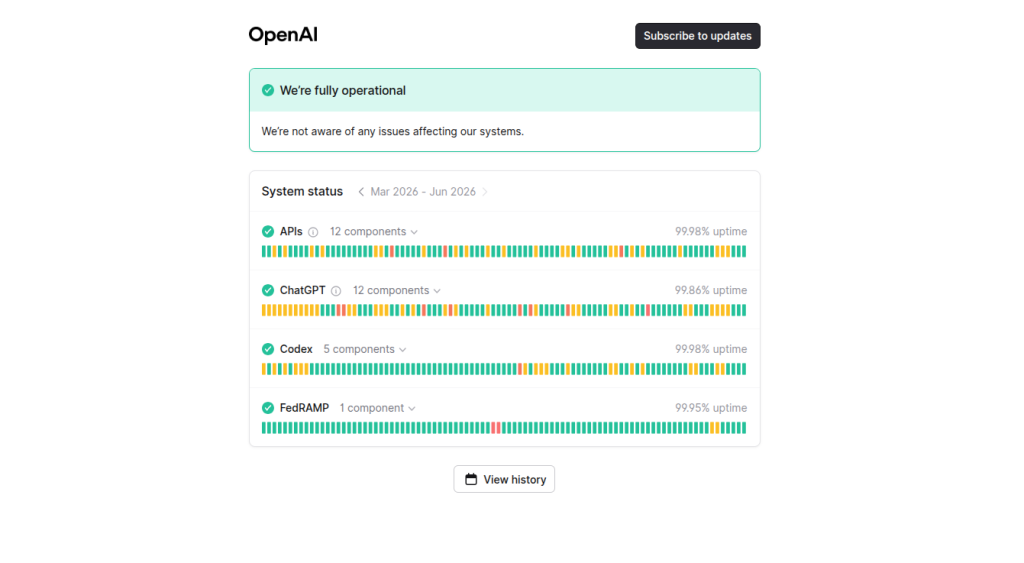
This page shows real-time updates on ChatGPT’s infrastructure, including any active outages, degraded performance, or maintenance windows. OpenAI updates it during incidents, and you can subscribe to notifications.
What to look for:
- A green “All Systems Operational” message means no known server issues
- Any yellow or red status indicators point to a live ChatGPT server issue
- Incident history at the bottom shows recent outages and their resolution timelines
If there is an active OpenAI service disruption, your only option is to wait. These outages typically resolve within 30 minutes to a few hours. You can also check third-party monitoring sites like Downdetector for user-reported issues in real time.
Key takeaway: Never spend 20 minutes troubleshooting your setup when the problem might be a temporary server outage affecting millions of users simultaneously.
Step 2: Fix ChatGPT Loading Problems with a Browser Refresh and Cache Clear
If the status page shows no issues, browser cache and cookies are the most common culprit behind ChatGPT loading problems.
Why this happens: Your browser stores temporary data from websites to speed up future visits. When ChatGPT updates its frontend or you encounter a corrupted cache entry, this stored data conflicts with the current version and prevents the app from loading properly.
How to clear your browser cache:
Chrome:
- Press Ctrl + Shift + Delete (Windows) or Cmd + Shift + Delete (Mac)
- Set time range to “All time”
- Check “Cached images and files” and “Cookies and other site data”
- Click “Clear data”
- Reload chat.openai.com
Firefox:
- Press Ctrl + Shift + Delete
- Select “Everything” from the time range
- Check Cache and Cookies
- Click “Clear Now”
Safari:
- Go to Safari > Settings > Privacy
- Click “Manage Website Data”
- Search for “openai” and remove
- Reload the page
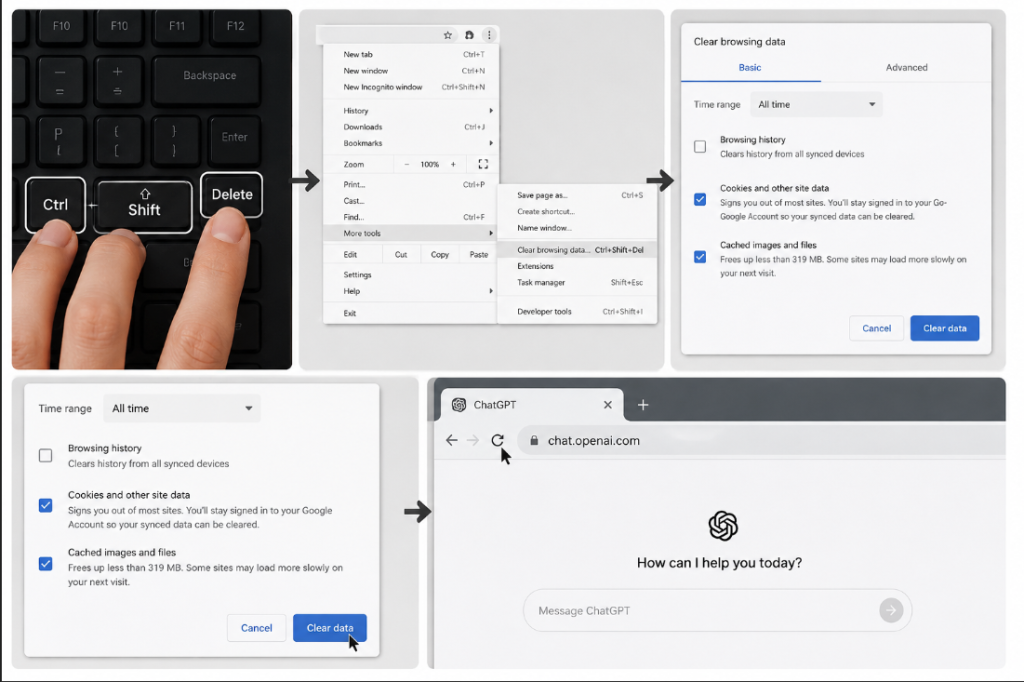
After clearing cache, open ChatGPT in a private or incognito window first to confirm it loads without your stored data. If it works in incognito, the issue was definitively your cache or a browser extension.
Step 3: Disable Browser Extensions
Browser extensions are a silent source of ChatGPT errors that most users never suspect.
Ad blockers, privacy tools, script blockers, and certain productivity extensions can interfere with ChatGPT’s JavaScript execution and prevent the conversation from loading or responding. Extensions like uBlock Origin, Privacy Badger, or even grammar tools can occasionally block resources ChatGPT depends on.
How to test for extension conflicts:
- Open an incognito or private browsing window (extensions are disabled by default)
- Navigate to chat.openai.com
- If ChatGPT works normally in incognito but not in your main browser, an extension is causing the conflict
How to identify the specific extension:
- Go to your browser’s extension manager
- Disable all extensions at once
- Test ChatGPT in your normal browser window
- Re-enable extensions one at a time, testing after each
- The extension that breaks ChatGPT again is your culprit
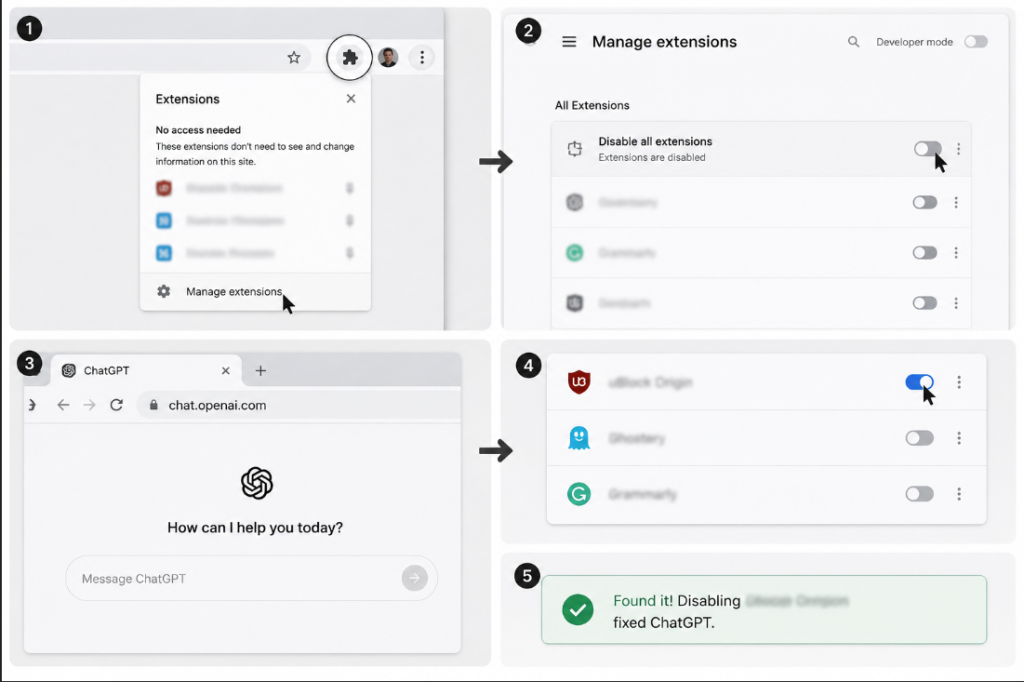
Common offenders include ad blockers, VPN extensions, content script managers, and security-focused extensions. You can often whitelist chat.openai.com in the extension settings rather than disabling it entirely.
Step 4: Fix ChatGPT Login Issues and Authentication Errors
If you see messages like “You do not have access,” “Authentication error,” or get stuck in a login loop, the issue is typically session-related.
Common ChatGPT login problems and fixes:
| Error Type | Likely Cause | Fix |
| Authentication error | Expired session token | Log out fully and log back in |
| Access denied | Account issue or region block | Check your account status at platform.openai.com |
| Login loop | Cookie conflict | Clear cookies and retry |
| “Something went wrong” | Session corruption | Log out, clear cookies, log in fresh |
| Email not recognized | Wrong account | Try Google/Microsoft SSO instead |
Step-by-step login fix:
- Click your profile icon and log out completely
- Clear your browser cookies for openai.com
- Close and reopen your browser
- Navigate to chat.openai.com and log in again
- If prompted for verification, complete it before testing
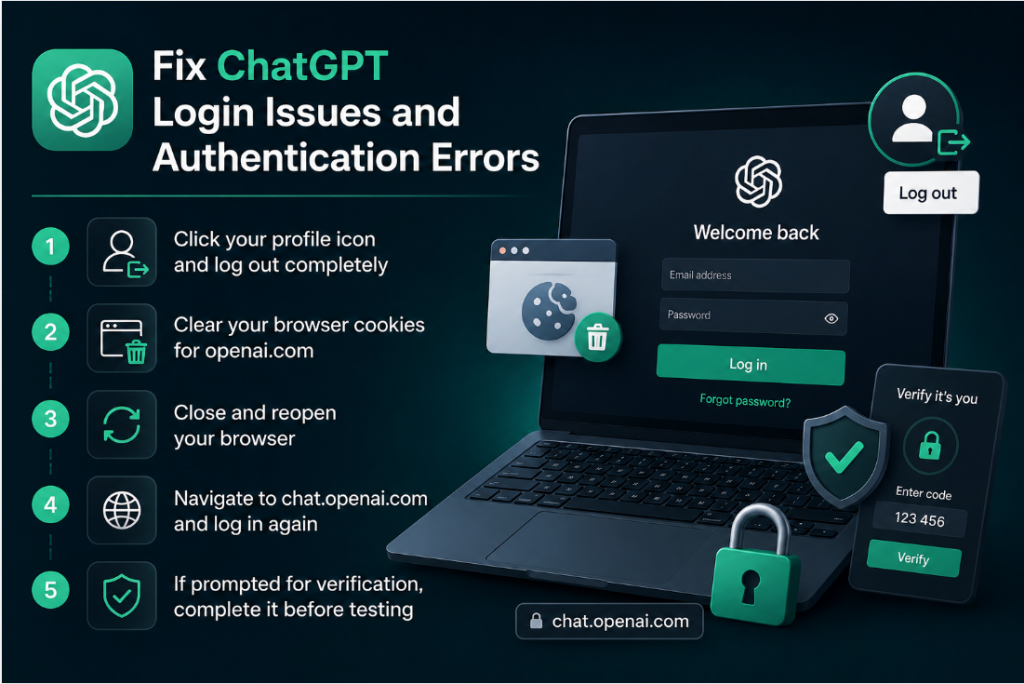
If you are using a work or school account, contact your administrator. Some organizations restrict access to AI tools through network-level filtering, which looks like an authentication error from your side.
Step 5: Check Your Internet Connection
This sounds obvious, but intermittent internet connection issues cause ChatGPT errors that look like app failures. ChatGPT requires a stable connection because it streams responses token by token. Any packet loss or unstable connection breaks that stream and returns a network error.
Quick connectivity checks:
- Open another data-heavy website or video stream to confirm your connection is stable
- Run a speed test at fast.com to check for unusual slowdowns
- If on Wi-Fi, try switching to a wired connection or moving closer to your router
- Restart your router if other sites are also slow
If you are using a VPN:
VPN interference is one of the more common technical causes of ChatGPT not working properly. OpenAI blocks access from certain server IP ranges and countries, and many VPN servers route through these ranges. If you have a VPN active:
- Disconnect from the VPN entirely
- Test ChatGPT with your regular connection
- If it works, your VPN’s exit server IP is likely flagged or the routing is adding enough latency to cause timeouts
You can switch to a different VPN server location or pause the VPN when using ChatGPT specifically.
Step 6: Resolve “ChatGPT Network Error” and Conversation Loading Issues
The ChatGPT network error message typically appears mid-conversation when a long response is interrupted. This is one of the most reported ChatGPT errors and it has a specific set of causes.
Why it happens:
- Your request is too long or complex for the current session
- A temporary server timeout on OpenAI’s side
- Your internet connection dropped briefly during streaming
- You hit a rate limit for your subscription tier
How to fix a ChatGPT network error:
- Click the regenerate response button first. Many times this alone resolves it.
- If regenerating fails, start a new conversation and repeat your request
- For long prompts, break them into shorter, more focused segments
- Check your plan’s usage limits. Free users and Plus subscribers have different rate limits per hour.
- Refresh the page if the conversation interface itself appears frozen
For ChatGPT conversation not loading issues specifically, a hard refresh (Ctrl + Shift + R on Windows, Cmd + Shift + R on Mac) forces the browser to reload all assets from the server rather than from cache.
Step 7: Fix ChatGPT App Not Working on Mobile
ChatGPT mobile app issues follow slightly different patterns than desktop browser problems.
Common mobile-specific fixes:
Force close and reopen the app On iOS: swipe up from the home bar and swipe the ChatGPT app away. On Android: open recent apps and swipe it closed. Relaunch the app.
Check for app updates An outdated ChatGPT mobile app frequently causes loading problems and missing features. Check the App Store or Google Play for pending updates and install them before troubleshooting further.
Clear app cache (Android) Go to Settings > Apps > ChatGPT > Storage > Clear Cache. This removes stored data without deleting your account or conversations.
Reinstall the app If the app crashes on launch or the ChatGPT app not working problem persists after updates, uninstalling and reinstalling often resolves deeper corruption issues.
Check mobile data or Wi-Fi Switch between Wi-Fi and mobile data to isolate connectivity as a variable. Some corporate or school Wi-Fi networks block AI tool domains at the DNS level.
Common ChatGPT Error Messages Explained
Here is a reference table for the most frequently reported ChatGPT error messages:
| Error Message | What It Means | How to Fix |
| “ChatGPT is at capacity right now” | Server overload during peak hours | Wait 10 to 30 minutes and retry |
| “Something went wrong” | Generic client or server error | Refresh the page or clear cache |
| “Network error” | Connection interrupted during response | Regenerate or restart the conversation |
| “Too many requests” / Rate limit exceeded | You have sent too many messages | Wait and retry; consider upgrading plan |
| “Internal server error” | Server-side failure at OpenAI | Check status page; wait for resolution |
| “Access denied” | Account or regional restriction | Check account, try without VPN |
| “Unable to load conversation” | Corrupted conversation data | Start a new chat |
| “You’ve reached the usage limit” | Free or Plus plan limit hit | Upgrade plan or wait for limit reset |
ChatGPT Not Working in Specific Browsers
ChatGPT website not working in one browser but fine in another is a clear sign of browser compatibility issues.
Browser-specific recommendations:
- Chrome is the most tested and compatible browser for ChatGPT. If you are experiencing issues in any other browser, test in Chrome first.
- Firefox generally works well but can conflict with certain tracking protection settings. Try disabling “Enhanced Tracking Protection” for openai.com.
- Safari on older macOS versions occasionally has JavaScript rendering issues. Ensure you are running Safari 16 or later.
- Edge works reliably, but Edge’s built-in tracking prevention can interfere. Add openai.com as an exception.
- Brave often blocks ChatGPT functionality due to aggressive shield settings. Lower the shield settings for openai.com specifically.
Updating your browser is a frequently overlooked fix. Outdated browsers lack support for newer JavaScript APIs that ChatGPT’s interface depends on. Check for updates in your browser’s settings and install any pending versions.
ChatGPT Performance Issues: Slow Responses and Freezing
If ChatGPT is loading but running unusually slowly or responses are freezing mid-stream, this points to a different set of issues than outright errors.
Common causes of ChatGPT performance issues:
- High server load during peak usage hours (typically 9 AM to 5 PM in US time zones)
- Too many browser tabs open consuming RAM and slowing JavaScript execution
- An older device struggling with the real-time rendering of streamed text
- A slow or congested internet connection insufficient for real-time streaming
Performance optimization tips:
- Use ChatGPT during off-peak hours when server load is lower
- Close unnecessary browser tabs before starting a session
- Disable unused extensions that consume browser memory
- Try the ChatGPT desktop app if web performance is consistently poor
- Upgrade to ChatGPT Plus for priority access to faster model infrastructure during high-demand periods
Final Verdict: How to Troubleshoot ChatGPT Not Working
Most ChatGPT errors fall into two buckets: server-side issues you cannot control, and local issues you can fix in minutes.
The fastest troubleshooting path:
- Check status.openai.com for active outages
- Open ChatGPT in an incognito window to rule out cache and extension issues
- Clear browser cache and cookies if incognito works but your main browser does not
- Disconnect any active VPN and retest
- Force close and update the mobile app if on a smartphone
- Log out and back in to refresh your session token
- Switch browsers entirely as a final local test
- Contact OpenAI support if nothing resolves it
For users who rely on ChatGPT professionally, it is worth bookmarking the OpenAI status page and considering a ChatGPT Plus subscription. Plus members get priority server access, which reduces the frequency of capacity errors during peak hours and offers access to more capable models with higher rate limits.
FAQ: ChatGPT Not Working
Why is ChatGPT not working today? ChatGPT may be down due to an OpenAI server outage, high traffic causing server overload, or a technical issue on your device. Check status.openai.com first to confirm whether the issue is widespread before troubleshooting locally.
Why does ChatGPT keep giving a network error? A ChatGPT network error usually occurs when your internet connection drops during a streamed response, when the request is too long for one session, or when the server times out. Click regenerate first, and if that fails, start a new conversation and break your request into shorter parts.
How do I fix ChatGPT not loading? Clear your browser cache and cookies, disable browser extensions, and try loading ChatGPT in incognito mode. If it loads in incognito, an extension or corrupted cache is the cause.
Is ChatGPT down right now? Go to status.openai.com for real-time information. You can also check Downdetector for user reports of ChatGPT outages and issues in your region.
Why can’t I log into ChatGPT? ChatGPT login issues are usually caused by expired session tokens or cookie conflicts. Log out fully, clear cookies for openai.com, close your browser, reopen it, and log in again. If the problem continues, try a different browser or login method.
Why does ChatGPT say I’ve reached the usage limit? Free and Plus users have rate limits on how many messages they can send per hour or per day with certain models. If you hit the rate limit, wait for it to reset. If you need higher limits, consider upgrading your plan.
Why is ChatGPT working on my phone but not on my computer? This usually points to a browser-specific issue on your computer. Try a different browser, clear your cache, or disable extensions. A VPN running on your desktop but not your phone could also explain the difference.
Can VPN cause ChatGPT to stop working? Yes. OpenAI restricts access from certain IP ranges and countries. Many VPN exit servers route through blocked IP addresses. Disconnect your VPN and test ChatGPT on your regular connection to confirm.
Why does ChatGPT keep freezing mid-conversation? Freezing mid-conversation is often caused by slow internet during streaming, high server load, too many open browser tabs consuming memory, or a browser extension interfering with the real-time text rendering. Try a fresh session in a clean browser environment.
What should I do if none of these fixes work? If ChatGPT is still not working after trying all the steps above, submit a support ticket through help.openai.com. Include your browser, operating system, the error message you are seeing, and what you have already tried. OpenAI support can investigate account-specific issues that general troubleshooting cannot resolve.