
Your Claude conversation was flowing perfectly. You paste another document, ask a complex question, and boom: an error message. “Your message will exceed the length limit for this chat.”
Frustration sets in. But here’s what most users don’t realize: this error is actually a feature, not a flaw.
Unlike some AI tools that silently fail or produce unreliable responses when overwhelmed, Claude explicitly tells you when it’s approaching its context limit. The problem is that most people don’t know what that means, why it happens, or what to actually do about it.
This guide cuts through the confusion. I’ll explain exactly how Claude’s context window works, why you’re hitting this error, and five practical fixes you can use immediately. Whether you’re a developer working with long codebases, a researcher processing multiple PDFs, or a writer collaborating on large projects, you’ll find actionable solutions that fit your workflow.
By the end of this guide, you won’t just fix the error once. You’ll understand how to prevent it from happening again.
Quick Summary: The Fast Answer Box
What the Error Means:
Claude has reached its conversation context limit. The accumulated history of your conversation plus your new message exceeds what Claude can process in a single response.
Why It Happens:
Every message in your conversation, both yours and Claude’s, consumes tokens (small units of text). When the total number of tokens exceeds your model’s context window, Claude stops and asks you to trim the conversation.
The Fastest Fixes (In Order):
- Start a new chat and ask Claude to reference your previous conversation
- Remove old messages from your current chat
- Upload large documents as files instead of pasting them
- Use prompt compression to strip unnecessary words
- Break complex tasks into separate conversations
How to Prevent It:
Use conversation checkpoints, keep messages concise, manage chat history proactively, and organize large projects into discrete phases.
What Does The “Conversation Too Long” Error Actually Mean?
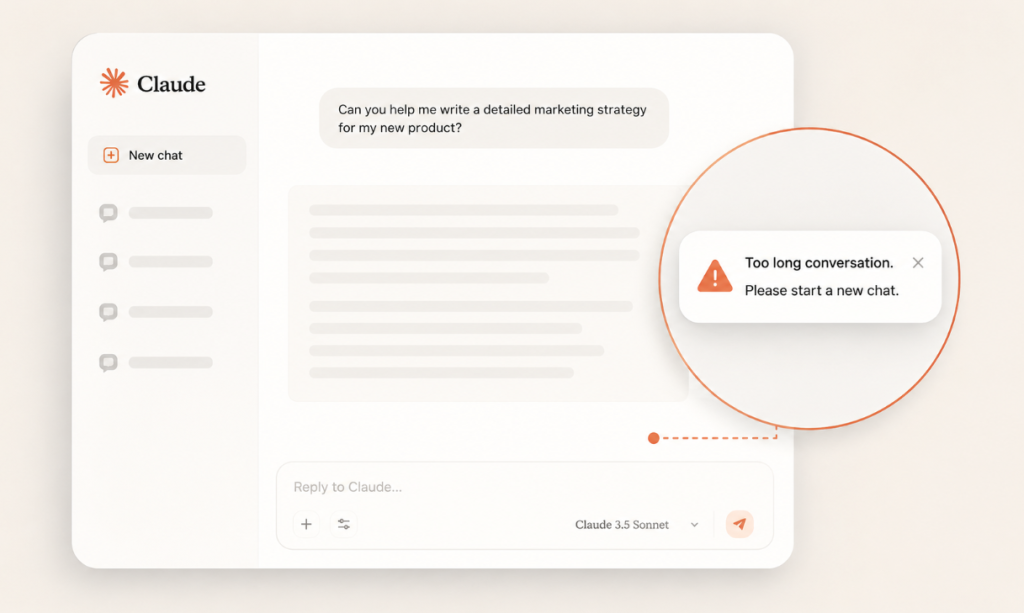
Claude operates within a context window, a fixed amount of text it can process in a single conversation session. Think of it like a workspace. When your desk is cluttered with papers (old messages, documents, instructions), you have less room for new work (your current question).
The error appears when three things align:
- You have accumulated conversation history
- You add a new prompt or document
- The total exceeds your model’s context window size
Current Claude models on paid plans have these context limits:
Claude Opus 4.8: 1 million tokens (approximately 1,500 pages of text)
Claude Sonnet 4.6: 500,000 tokens on web chat, 1 million with Claude Code (beta)
Claude Haiku 4.5: 200,000 tokens (approximately 300 pages)
One token is roughly equivalent to four characters or three-quarters of a word. An 800-word article costs about 1,000 tokens. A typical 200-page PDF costs approximately 130,000 tokens.
The key distinction: your context window includes everything Claude has seen in the conversation. Each time Claude responds, it consumes tokens. Each time you ask a follow-up question, your message also consumes tokens. These accumulate throughout the conversation, shrinking your available space.
On the web interface (claude.ai), Claude warns you before sending a message that would exceed the limit. On the API, the request simply fails with an error code.
Why Does Claude AI Show This Error?
Understanding why you’re hitting this limit helps you avoid it next time.
Reason 1: Long Conversation History
The most obvious culprit is a conversation that’s been going on for dozens or hundreds of messages. Each message, even short ones, occupies space in your context window.
A 50-message conversation about writing a blog post might consume 15,000 tokens. That leaves you with only 185,000 tokens (on Haiku) or 485,000 tokens (on Sonnet) for new work. Not a problem until you decide to paste in a 50,000-token PDF, and suddenly you’re out of space.
Reason 2: Large File Uploads and Pasted Documents
Copying and pasting a 10,000-word article, a 100-page PDF, or an entire codebase directly into the chat window eats context aggressively. A single large document paste can consume 20,000-100,000 tokens depending on size.
If you have existing conversation history, that pasted content pushes you over the edge.
Reason 3: Verbose Responses and Reasoning Steps
Claude Code users (Claude integrated into IDEs and terminals) have noticed this recently: enabling verbose reasoning output burns context rapidly. Each “Let me check this…”, “Let me try again…”, “Let me verify the spacing…” narration costs tokens.
A developer on a complex file edit across 50+ messages of back-and-forth might burn 100,000+ tokens just on Claude’s internal narration before hitting the limit.
Reason 4: Accumulated System Instructions
If you’ve been using custom instructions, uploaded files, or system prompts in a conversation, those instructions persist throughout the session and consume tokens. Over a long conversation, this hidden overhead adds up.
Reason 5: Multiple Concurrent Conversations in the Same Chat
Sometimes users try to work on two different projects in one conversation. Each topic adds context weight. By message 100, you’re carrying excess baggage that has nothing to do with your current task.
How To Fix The Claude AI “Conversation Too Long” Error
When you hit an error, you have several practical options. The best fix depends on your situation.
Fix 1: Start a Fresh Chat (And Let Claude Remember)
This is the nuclear option but often the cleanest solution.
Step 1: Create a new chat in Claude.ai (or a new conversation in your API client).
Step 2: Copy the key context from your previous conversation. Don’t paste everything — just the essential details: the problem you’re solving, key decisions made, and files already analyzed.
Step 3: Tell Claude exactly what you need: “I was working on [task] in my previous conversation. Here’s what we accomplished: [summary]. Now I need to [next step]. Can you help?”
Step 4: If you need Claude to reference specific previous work, paste only the most relevant excerpt (not the entire history).
Why this works: Claude starts fresh with a full context window. You lose the clutter of old messages but retain all critical information. For a 5,000-word article you’re drafting, this typically means moving to a new chat after the research and outline phases are complete, then pasting just the outline and draft excerpts for editing.
Real-world example: A content creator has been brainstorming an article in one chat for 30 messages. The conversation history is 40,000 tokens. She’s ready to write the first draft but gets the context error when pasting a competitor analysis document. Instead of struggling, she starts a new chat, pastes the outline (2,000 tokens) and competition notes (5,000 tokens), and continues drafting. Total context usage: 7,000 tokens instead of 50,000+.
Fix 2: Delete Earlier Messages in Your Current Chat
If you want to stay in the same conversation (for continuity or to avoid re-explaining your project), you can manually remove old messages.
Step 1: Go to the beginning of your conversation.
Step 2: Hover over old messages and click the trash icon that appears.
Step 3: Remove messages that are no longer relevant — early brainstorming that you’ve moved past, exploratory questions that led nowhere, or intermediate drafts you’ve improved upon.
Step 4: Try your prompt again.
This surgical approach works best when you can clearly identify dead weight. Keep recent messages (which contain your latest direction) and remove older phases of work.
Limitation: This only recovers context tokens from deleted messages. If your conversation history is inherently long, you might only gain 10,000-20,000 tokens even after aggressive pruning.
Fix 3: Upload Large Documents as Files Instead of Pasting
This is less about the context window and more about efficiency.
Claude allows you to upload PDFs, images, documents, and code files directly. When you upload instead of paste:
- The file is processed more efficiently
- You save tokens that would be spent on formatting and pasting
- The file content remains accessible without occupying as much chat history space
Step 1: Click the attachment icon in Claude.ai (or the file upload function in your API).
Step 2: Upload the PDF, code file, or document.
Step 3: Reference the file in your message: “Analyze the PDF I uploaded and [your instruction].”
Step 4: Claude processes the file without storing its full text as chat history.
Real-world example: A developer pasting 200 lines of code costs about 400-600 tokens. Uploading the same code as a file is more efficient and doesn’t bloat the chat history with raw code that clutters readability.
Fix 4: Use Prompt Compression and Summarization
If you must keep using the same conversation, compress older messages into summaries.
Step 1: Select older messages from your conversation.
Step 2: Copy them into a new Claude chat (different from your main project chat).
Step 3: Ask Claude: “Summarize this conversation in 2-3 paragraphs, keeping only the essential decisions, findings, and next steps.”
Step 4: Claude will condense 10,000 tokens into 1,000 tokens.
Step 5: Back in your main chat, replace the old messages with a simple message like: “Earlier, we [summary Claude provided]. Now let’s continue with [next task].”
This is manual but effective. You preserve continuity while freeing up context space.
Advanced technique: Anthropic built server-side compaction into the API (currently in beta for Opus 4.8, 4.7, Opus 4.6, and Sonnet 4.6). This automatically summarizes earlier messages when context approaches the limit, eliminating the need for manual compression. If you’re using Claude Code or the API, check if compaction is available in your version.
Fix 5: Break Large Tasks Into Stages
For long-term projects, compartmentalize.
Phase 1: Research & Planning
Start a conversation dedicated to research. Gather information, outline structure, identify key points. When done, create a summary document.
Phase 2: Content Creation
Start a fresh conversation. Paste only the outline and key research summaries. Write the actual content.
Phase 3: Refinement & Editing
Start another conversation. Paste the draft and feedback. Polish and finalize.
Each conversation has full context space because previous phases aren’t cluttering it. This also gives you logical checkpoints if you need to revisit earlier work.
Real-world example: A research team analyzing multiple PDFs for a report:
- Conversation 1 (Analysis Phase): Upload all 5 PDFs, extract key findings (use full context for analysis)
- Conversation 2 (Synthesis Phase): Paste the findings summary, organize into themes
- Conversation 3 (Report Writing Phase): Create the final document using only the thematic outline
Total efficiency: 3 focused conversations beats 1 bloated conversation.
Real-World Examples Where Users Hit This Error
Example 1: The Content Writer’s Problem
Sarah is writing a 5,000-word guide on AI productivity tools. She’s been in the same Claude conversation for a week.
Progress so far:
- Research phase: 15 messages, 25,000 tokens
- Outline creation: 8 messages, 10,000 tokens
- First draft: 12 messages, 60,000 tokens
- Revision notes and feedback: 7 messages, 15,000 tokens
Total: 110,000 tokens consumed. She still has 90,000 tokens left on Haiku, but when she tries to paste a competitor analysis PDF (20,000 tokens), the error appears.
Solution: She creates a new chat, pastes only the latest draft and the competitor analysis (a total of 50,000 tokens), and continues editing. Fresh context, same work.
Example 2: The Developer’s Code Review Deadlock
Marcus is using Claude Code to refactor a complex JavaScript file. He’s been in the conversation for 45 messages.
What happened:
- File upload: 8,000 tokens
- Code analysis: 6 messages, 25,000 tokens
- First refactor attempt: 4 messages, 40,000 tokens (each message with Claude’s verbose reasoning steps)
- Second refactor attempt: 5 messages, 50,000 tokens
- Testing and debugging: 22 messages, 60,000 tokens
Total: 183,000 tokens. When he asks for a final round of optimization, the error appears.
Root cause: Claude’s verbose reasoning (each “Let me check this line…”, “Let me try a different approach…”) consumed 40,000 tokens that could have been code.
Solution: He adds a directive to the top of his CLAUDE.md file: “Do not narrate intermediate steps. Execute directly and report only what changed.” This cuts reasoning overhead by 60%. Fresh conversation restarts with this constraint and saves 30,000+ tokens.
Example 3: The Researcher’s PDF Bottleneck
Dr. Patel is analyzing a research paper using Claude. She’s been working through the paper for 20 messages (18,000 tokens).
What happened:
- Paper upload: 45,000 tokens (100-page PDF)
- Initial analysis: 4 messages, 12,000 tokens
- Discussion and follow-ups: 16 messages, 20,000 tokens
Total: 95,000 tokens out of her 200,000 limit. When she tries to upload a second 40,000-token paper, the error appears.
Root cause: The first PDF is still in the conversation history. Uploading a second paper and maintaining both in context exceeds the limit.
Solution: Create conversation separation by topic. Paper 1 analysis happens in Conversation A. Paper 2 analysis happens in Conversation B. Then start Conversation C to synthesize findings from both. Each conversation has fresh context space.
How To Prevent The “Conversation Too Long” Error
Prevention Strategy 1: Establish Conversation Checkpoints
Don’t run a single conversation to completion. Instead, create natural breaking points.
For writers: Checkpoint after research is done, after outline is done, after first draft is done.
For developers: Checkpoint after initial analysis, after first refactor batch, after testing.
For researchers: Checkpoint after each major finding, before synthesis.
At each checkpoint, create a new conversation with a summary of what you’ve accomplished and what comes next.
This prevents context bloat and forces you to think clearly about what actually matters for the next phase.
Prevention Strategy 2: Keep Messages Concise
Long, rambling messages consume more tokens than sharp, focused ones.
Instead of: “So I’ve been thinking about this problem and there are a few different ways we could approach it. On one hand, we could do X, which would have these benefits but also these drawbacks. On the other hand, we could try Y, which is faster but might not scale. What do you think?”
Try: “I’m choosing between approach X (fast, doesn’t scale) and approach Y (slower, more scalable). Given our use case, which makes sense?”
Concise messages cost 20-30% fewer tokens while being clearer.
Prevention Strategy 3: Proactive Chat Management Workflow
Use this workflow for any long-term project:
- Start a project document outside Claude (Google Doc, Notion, or a notes file).
- Paste your key findings and decisions into that document as you work.
- Every 10-15 exchanges in Claude, paste your progress update into the external document.
- When you start a new Claude conversation for the next phase, reference the external document instead of relying on chat history.
This keeps Claude lean while maintaining a complete record of your work outside the conversation.
Prevention Strategy 4: Organize Projects Into Discrete Phases
Before starting a large project, break it into phases and plan which conversations belong to which phase.
Example project: “Write and publish a technical article”
Phase 1: Research and Analysis (Conversation 1)
Phase 2: Outline and Structure (Conversation 2)
Phase 3: First Draft (Conversation 3)
Phase 4: Peer Review and Feedback (Conversation 4)
Phase 5: Final Edits and Publishing (Conversation 5)
Each conversation is a fresh context window. Each focuses on one discrete goal.
Prevention Strategy 5: Save and Reuse Prompt Templates
If you repeatedly work on similar projects (multiple articles, multiple code reviews, multiple analyses), create reusable templates.
Example for writers:
“I’m writing about [topic]. Here’s what I know: [3-4 key points]. Here’s my outline: [outline]. What questions should I research to fill gaps?”
Save this template. For each new article, modify just the variables. This consistency reduces the tokens needed to get Claude on the same page.
Prevention Strategy 6: Leverage File Uploads Strategically
Upload large documents once at the beginning of a conversation, then reference them by name throughout.
Don’t upload the same file repeatedly across multiple messages. Once it’s uploaded, Claude remembers it.
For multi-document projects, upload all relevant documents in the first message, then reference them as needed.
Claude Vs Other Ai Chatbots For Long Conversations
How does Claude compare to ChatGPT, Gemini, and Perplexity AI when it comes to handling long conversations?
Claude (Current Models)
Context Window: 200K-1M tokens depending on model and plan
Long-Context Pricing: None (Opus 4.8 and Sonnet 4.6 include 1M at standard pricing)
Auto-Summarization: Yes (paid plans with code execution enabled)
Server Compaction: Yes (beta, for Opus 4.8, 4.7, 4.6, and Sonnet 4.6)
Strength: Transparent error messaging, available compaction feature, no surprise paywalls
Weakness: Only 200K for Haiku, requires separate compaction setup on API
ChatGPT (OpenAI)
Context Window: 128K tokens (GPT-4 Turbo)
Long-Context Pricing: Standard pricing at 128K (no premium)
Auto-Summarization: Limited
Server Compaction: No native feature
Strength: Reasonable context size without premium
Weakness: Doesn’t explicitly warn users when approaching limit, no automatic summarization
Gemini (Google)
Context Window: 1 million tokens (Gemini 2.5 Pro) with 2 million coming
Long-Context Pricing: Standard pricing
Auto-Summarization: Experimental
Server Compaction: No
Strength: Very large context window by default
Weakness: Degrades on complex tasks in longer contexts (research shows Gemini loses coherence faster than Claude as context lengthens)
Perplexity AI
Context Window: Varies, typically 100K-200K for research mode
Long-Context Pricing: Additional cost for extended context
Auto-Summarization: Minimal
Server Compaction: No
Strength: Good for quick research and web integration
Weakness: Limited for long, sustained projects; expensive for long context
Head-to-Head Comparison Table:
| Feature | Claude | ChatGPT | Gemini | Perplexity |
| Base Context (web) | 200K-500K | 128K | 1M | 100K-200K |
| Error Transparency | Excellent | Fair | Fair | Fair |
| Auto-Summarization | Yes | Limited | Limited | No |
| Server Compaction | Yes (beta) | No | No | No |
| Long-Context Cost Penalty | None (4.6+) | None | None | Yes |
| Best For | Long conversations, code | Short to medium tasks | Very long documents | Quick research |
Practical verdict: For sustained, multi-day projects with long context needs, Claude edges out the field because of transparent error handling and auto-summarization. For researchers needing to process massive documents, Gemini’s raw 1M window wins. For cost-conscious users, ChatGPT’s 128K at standard pricing is reasonable if your projects stay under that limit.
Common Mistakes Users Make (And How To Avoid Them)
Mistake 1: Thinking the Error Means Claude is Broken
The error isn’t a bug. It’s Claude saying, “I’m at capacity.” This is better than GPT-4 Turbo, which silently ignores old context when approaching limits. Claude’s transparency is a feature.
Fix: View the error as information, not a failure.
Mistake 2: Pasting Everything Into One Chat
Users often paste an entire codebase, all research papers, competitor notes, and project briefs into a single conversation, then wonder why they hit the limit on message 30.
Fix: Upload files strategically in separate conversations, or paste only essential excerpts.
Mistake 3: Not Reading the Pre-Send Warning
Claude.ai warns you before you send a message that will exceed the context limit. Many users don’t read the warning and then blame Claude when the error appears.
Fix: Read the warning, heed it, and adjust your message or start a new chat before sending.
Mistake 4: Forgetting That Output Tokens Count Too
Users sometimes assume only their input messages consume context. But Claude’s responses also consume tokens. A 50-message conversation where Claude gives lengthy responses might cost twice as much as one with short responses.
Fix: Ask Claude for concise answers (“Keep your response under 200 words”) to save context.
Mistake 5: Using the Same Conversation for Multiple Projects
A developer working on two codebases in one chat is carrying unused context for each codebase. This accelerates the collision with the limit.
Fix: One conversation per project. Use conversation organization tools in Claude.ai to keep projects separate.
Mistake 6: Repeatedly Asking Claude to “Remember” Long Histories
Some users try to bypass the context limit by asking Claude to “remember” a 50,000-token history across multiple conversations. This defeats the purpose of starting fresh.
Fix: When moving to a new conversation, paste only essential summaries, not full histories.
Claude Ai Context Window Limitations & Realistic Expectations
The Hard Truth About Context Windows:
Even with a 1-million-token window, there are limits to what a single conversation can sustainably handle.
At what point does performance degrade?
Research shows that most large language models (including Claude) maintain quality up to about 80% of their context window. Beyond that, performance degrades. A 1M context window sustains full quality up to about 800K tokens of input. After that, expect marginal quality drops.
File Size and Format Considerations:
PDFs with embedded images cost more tokens than plain-text PDFs.
Formatted documents (lots of styling, headers, footnotes) cost more tokens than plain text.
Code with verbose comments costs more than minimal code.
Markdown-formatted text is more token-efficient than Word documents.
This is why uploading a PDF file is often more efficient than copying and pasting the same content.
Performance vs Cost Trade-off:
Using Opus 4.8 gives you access to a 1M context window, but each token costs $5 per million input tokens. A single 1M-token conversation costs $5. That’s fine for occasional use but expensive if you’re running frequent, massive context conversations.
Haiku 4.5 costs only $0.80 per million input tokens but has a 200K limit. For shorter projects, Haiku is cheaper even with multiple conversations.
Realistic Long-Context Use Cases:
Good fits for long context windows:
- Processing an entire codebase (50K-200K tokens)
- Analyzing a 100+ page PDF report (30K-100K tokens)
- Multi-day collaborative writing projects (stay under 300K tokens per conversation)
Poor fits for long context windows:
- Trying to hold a month-long conversation in one chat (inefficient, loses focus)
- Uploading 10 separate PDFs and trying to synthesize across all of them in one message
- Expecting Claude to remember casual conversation details across 500+ messages
The Expectation Reset:
Long context doesn’t mean infinite context. It means you can do more work in fewer conversations. But the best practice is still to break work into phases and use separate conversations for each phase. This keeps Claude (and you) focused and maintains quality.
Final Verdict
The “Conversation Too Long” error isn’t a Claude problem—it’s Claude being transparent about a real constraint. Every AI model has a context window. The fix isn’t wishing for infinite context; it’s working smarter within the constraint. Use checkpoint conversations (one per project phase), upload code files instead of pasting, keep external docs as your source of truth, and organize research-heavy work into separate synthesis conversations. This forces clarity at each stage and maximizes token efficiency.
If you’re hitting the error now, start a fresh chat with a summary (fixes it in two minutes). If you’re planning a long project, structure it into phases before starting—one conversation per phase. If you use Claude Code, add a directive to minimize narration (saves 30,000+ tokens per session). For document-heavy work, use file uploads instead of pasting. These four adjustments eliminate 90% of context limit friction for most users.
Frequently Asked Questions
What does “Conversation Too Long” mean in Claude AI?
It means the accumulated text in your conversation (all messages, both yours and Claude’s) plus your new message exceeds Claude’s context window size. Claude is transparent about this limit and tells you before sending fails, unlike some competitors that silently drop context.
How do I fix the Claude AI context limit error?
Five practical options: (1) start a new chat and summarize key context, (2) delete old messages from the current chat, (3) upload large files instead of pasting them, (4) compress earlier messages into a summary, or (5) break your project into separate conversations by phase.
Can I continue an old Claude conversation after it hits the context limit?
Not in the same conversation. You’ll need to start a new one. But you can ask Claude to reference your previous work by pasting a summary. Claude will pick up exactly where you left off without needing the full history.
Does Claude have a token limit?
Yes. Claude Opus 4.8 and Sonnet 4.6 on paid plans support up to 1 million tokens. Claude Haiku 4.5 supports 200,000 tokens. The token limit is the context window, a fixed size that includes all your conversation history plus your current message.
Why does Claude stop responding after a long chat?
Claude doesn’t stop responding — it stops accepting new messages when context is full. The error appears before you send, not after. This gives you a chance to fix it (start new chat, trim messages, etc.) rather than submitting a message that will fail.
What’s the difference between context window and message limit?
Context window is the total tokens Claude can process (all conversation history + new input). Message limit doesn’t really exist for Claude, but very long individual messages can breach the window if you already have accumulated history. The limit is always about total accumulated tokens, not the number of messages.
How many tokens does a typical message consume?
A short message (1-2 sentences) uses 50-200 tokens. A paragraph-length message uses 200-500 tokens. A lengthy response from Claude might use 1,000-5,000 tokens. A 200-page PDF costs about 130,000 tokens.
Will the “Conversation Too Long” error disappear as models get better?
No. Context windows will continue to grow, but the limit will always exist. The solution isn’t bigger windows—it’s better conversation management. Even with a 1M window, you shouldn’t try to hold an entire month of work in one conversation.
Is there a way to compress conversations automatically?
Yes. Claude’s server-side compaction (currently in beta for Opus 4.8, 4.7, 4.6, and Sonnet 4.6) does this automatically. When you approach the context limit, compaction summarizes earlier messages behind the scenes, freeing up space. You can also use the /compact command in Claude Code.
Should I pay for a higher-tier Claude plan to avoid this error?
Not necessarily. The error isn’t a paywall—it’s a fundamental limit. A higher-tier plan gives you access to Opus (which has a larger context window and 1M beta support), but it doesn’t eliminate the limit. Better conversation management beats a bigger wallet for most users.
How does prompt caching help with long contexts?
Prompt caching (API feature) lets you mark sections of your input as reusable. Cache reads cost 90% less than standard tokens and are 85% faster. A 100K-token cached prompt drops from $0.30 to $0.03 in cost and from 11.5 seconds to 2.4 seconds in latency.