
If you’ve heard people talking about ChatGPT but aren’t sure how to actually use it, you’re not alone. Millions of beginners are now using AI tools like ChatGPT to write emails, brainstorm ideas, learn new skills, generate content, solve coding problems, and save time on everyday tasks.
The good news? You don’t need to be technical to get started. ChatGPT is designed for regular people, not just computer experts.
This beginner-friendly guide will show you exactly how to use ChatGPT step by step, including:
- How to create an account and navigate the interface
- How to ask better ChatGPT questions that actually get results
- How to customize ChatGPT to match your communication style
- How to use ChatGPT voice mode for hands-free conversations
- How to upload images and files for analysis
- Real-world use cases and practical beginner tips
- Common mistakes to avoid so you get the most value
By the end of this guide, you’ll know how to use ChatGPT effectively even if you’ve never used an AI chatbot before. You’ll also understand when to use it and how to get genuinely helpful responses that save you time.
Quick Summary: ChatGPT for Beginners
| Feature | Details |
| What is ChatGPT? | An AI chatbot that understands and generates human-like text responses |
| Best For | Writing, learning, coding, brainstorming, productivity planning |
| Free Version Available? | Yes, fully functional |
| Paid Version | ChatGPT Plus ($20/month for power users) |
| Beginner Friendly? | Very easy to use, no coding knowledge required |
| Time to Learn | Around 30-60 minutes to become comfortable |
| Best Part | You can learn as you go, no setup required |
Key Takeaways
- ChatGPT works best when you give it clear, specific instructions
- You can use it for work, studying, business, and creative projects
- The free version is plenty for most beginners and casual users
- Better prompts lead to better responses every single time
- You can upload files, images, and use voice conversations
Part 1: What Exactly Is ChatGPT?
ChatGPT is an AI chatbot developed by OpenAI that understands natural language and generates responses that feel conversational and genuinely helpful.
Here’s what makes it different from a regular search engine: When you search Google, you get a list of websites. When you ask ChatGPT a question, it creates a thoughtful response tailored to what you asked. It’s like having a knowledgeable friend who’s available 24/7 to help you think through problems.
You can use ChatGPT for practical, everyday tasks like:
- Writing professional emails and blog posts
- Learning complex topics explained in simple language
- Brainstorming creative ideas for projects or businesses
- Getting help with coding problems and debugging
- Planning your week and managing tasks
- Summarizing lengthy documents and articles
- Learning new languages through conversation
- Marketing assistance and social media content
Think of ChatGPT as a versatile assistant that helps you think faster, write better, learn more efficiently, and solve problems you encounter. The more you use it, the more natural it becomes.
Part 2: How to Access ChatGPT
Step 1: Create a Free Account
Getting started is incredibly simple and takes less than five minutes.
To use ChatGPT:
- Visit the ChatGPT official website (openai.com/chatgpt)
- Click the “Sign Up” button
- Enter your email address or sign in with Google
- Verify your account through the confirmation email
- Create a password
- Log in and you’re ready to start chatting
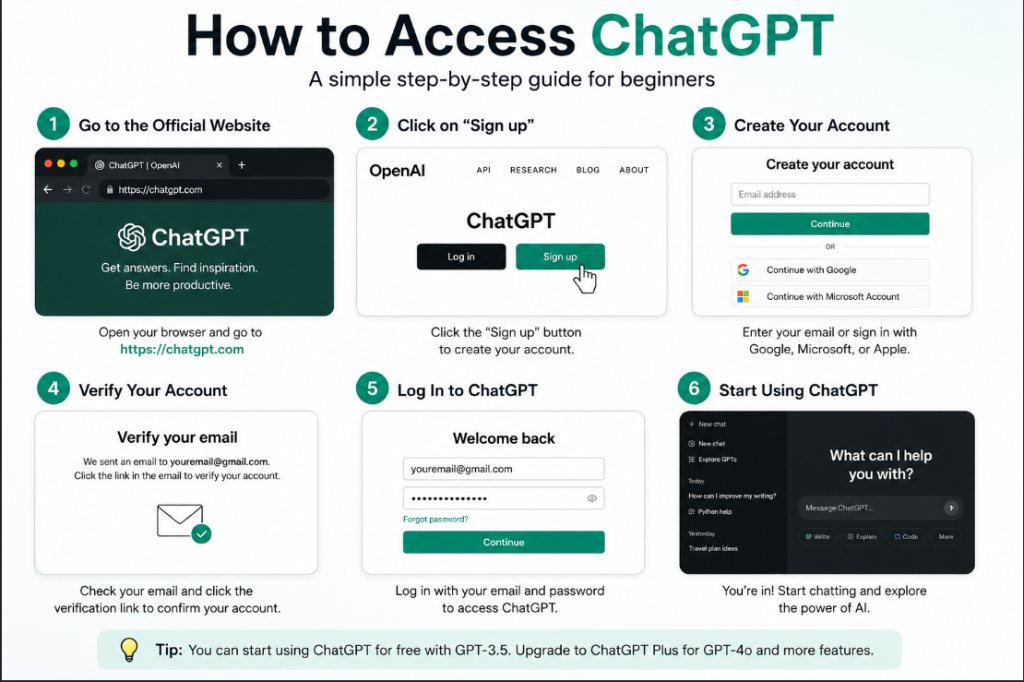
The free version is powerful enough for most beginners. You get access to ChatGPT 3.5, which handles the vast majority of everyday tasks without any limitations. No credit card required for the free version.
Step 2: Understand the ChatGPT Interface
When you first open ChatGPT, here’s what you’ll see:
The main chat area takes up most of the screen. This is where your conversation happens.
The message input box is at the bottom where you type your questions or instructions.
The sidebar on the left shows your previous conversations organized by topic. You can click any previous chat to continue where you left off.
The “New Chat” button at the top left lets you start a fresh conversation (helpful when switching to completely different topics).
The settings menu (usually a gear icon) is where you can adjust preferences, customize ChatGPT, and manage your account.
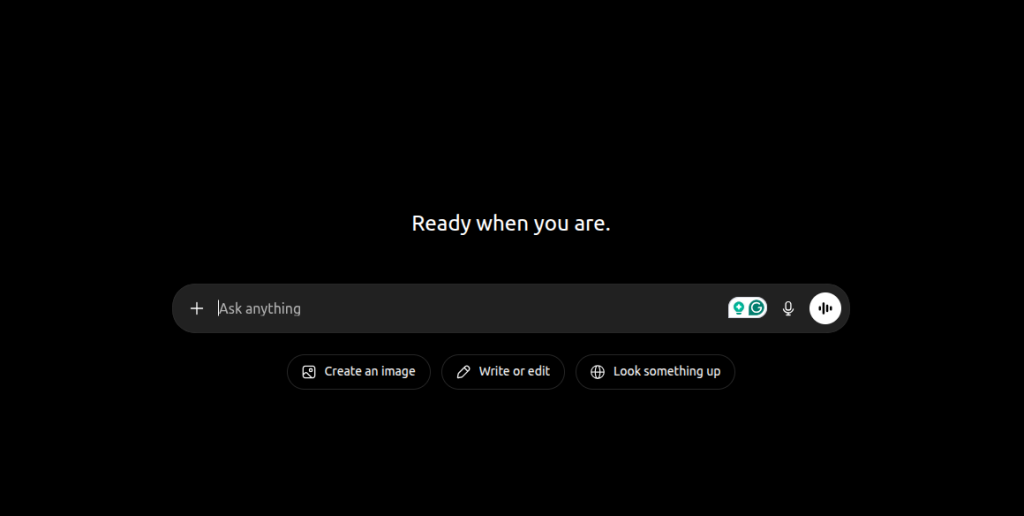
Pro Tip: Start a new chat whenever you switch to a completely different topic. ChatGPT performs better when it’s focused on one subject, and this also helps keep your chat history organized.
Part 3: How to Ask ChatGPT Questions Properly
This is the single most important skill for getting real value from ChatGPT.
The simple truth: better questions lead to better answers. A vague question gets a vague response. A clear, detailed question gets a helpful, specific response.
The Formula for Better Prompts
Use this structure to ask ChatGPT questions:
Context + Task + Format + Details
Here’s what each part means:
- Context: Background information ChatGPT should know
- Task: What you actually want ChatGPT to do
- Format: How you want the response structured
- Details: Specific requirements or preferences
Weak Prompt Example: “Write a blog post”
Better Prompt Example: “Write a 500-word blog post introduction about remote work productivity tips for freelancers working from home. Use a conversational, friendly tone that feels like talking to a colleague. Include a relatable opening hook.”
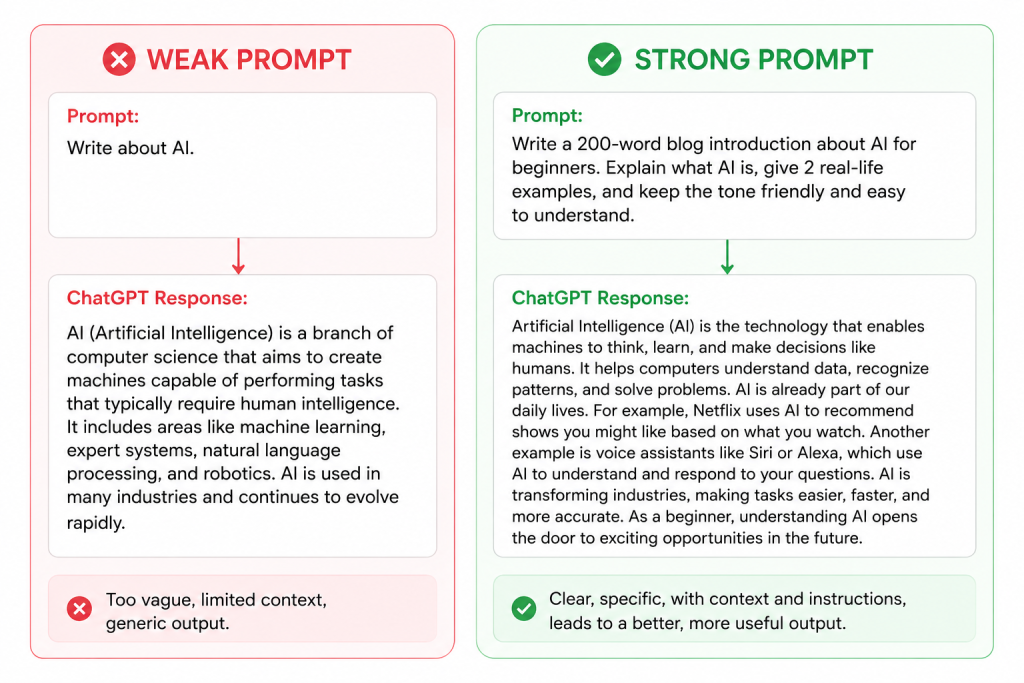
The second prompt works better because ChatGPT knows exactly what you want, how long it should be, who it’s for, and what tone to use.
Beginner Prompt Examples You Can Use Right Now
| Goal | Better Prompt Example |
| Email Writing | “Write a professional follow-up email after a client meeting. Keep it friendly but formal. Mention the three action items we discussed and ask for confirmation by Friday.” |
| Learning | “Explain SEO in simple terms for someone who’s never heard of it before. Use everyday examples I can relate to, not technical jargon.” |
| Social Media | “Generate 10 creative Instagram caption ideas for a coffee shop’s evening beverage promotion. Make them engaging, slightly funny, and between 100-150 characters.” |
| Coding Help | “I’m getting an error in my Python code that says ‘NameError: name is not defined’. Here’s my code: [paste code]. What’s causing this and how do I fix it?” |
| Brainstorming | “Give me 15 YouTube channel ideas in the fitness niche that haven’t been done to death. Focus on underserved audiences or unique angles.” |
Tips for Getting Better ChatGPT Responses
1. Be Specific
Specific prompts produce more useful answers. Instead of asking “How do I start a business?” ask “What are the first five steps to starting a dropshipping business with less than $500 initial investment?”
2. Mention Your Desired Tone
Tell ChatGPT how you want the response to sound:
- Professional and formal for client communications
- Casual and conversational for social media
- Friendly and approachable for customer emails
- Technical and detailed for coding help
- Simple and easy to understand for learning new concepts
3. Ask for Specific Formatting
Make responses easier to use by requesting specific structures:
- “Use bullet points for easy scanning”
- “Create a comparison table”
- “Keep it under 200 words”
- “Organize this as a step-by-step guide”
- “Format this as an FAQ”
4. Use Follow-Up Questions Effectively
Instead of starting over and retyping everything, use follow-up prompts to refine responses:
- “Make this shorter and punchier”
- “Add more specific examples”
- “Rewrite this in a more professional tone”
- “Simplify this for a 10-year-old to understand”
This is where ChatGPT becomes really powerful. You’re building on the conversation rather than starting from scratch.
Part 4: How to Customize ChatGPT
ChatGPT allows you to personalize how it responds so every conversation matches your preferences and communication style. This feature helps save time because you won’t need to repeat the same instructions in every conversation.
What You Can Customize
You can tell ChatGPT about yourself so it adapts automatically:
- Your profession (teacher, marketer, developer, student, etc.)
- Your preferred communication style (casual, formal, technical, simple)
- How you like information presented (bullet points, paragraphs, tables)
- Your writing preferences (concise, detailed, creative, analytical)
- Your learning level (beginner, intermediate, advanced)
- How you prefer feedback and explanations
How to Set Up ChatGPT Customization
- Open ChatGPT and log into your account
- Click your profile icon in the bottom left corner
- Select “Settings” from the menu
- Find and select “Customize ChatGPT”
- Add your preferences in the provided text field
- Save your changes
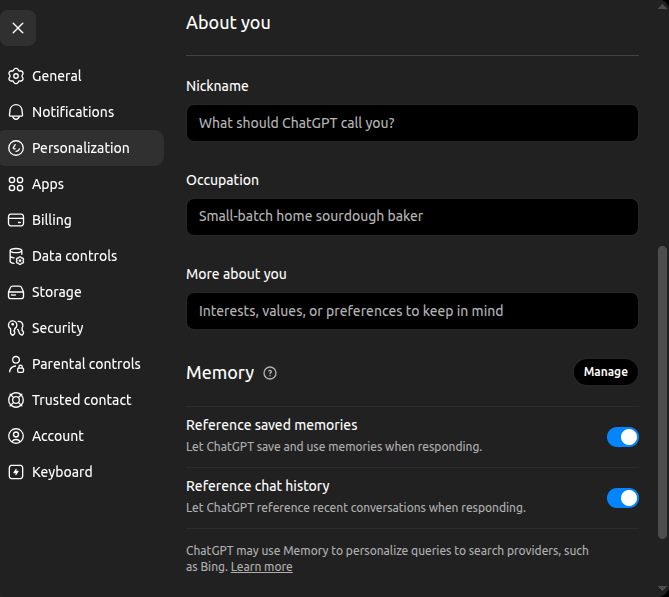
Once you’ve customized it, ChatGPT remembers these preferences in every conversation.
Example Custom Instructions You Can Use
Here are real customization examples that actually improve responses:
- “Explain topics like you’re talking to a complete beginner. Avoid jargon and use everyday examples.”
- “Keep all responses concise and practical. I prefer bullet points over long paragraphs.”
- “Write in a conversational, friendly tone as if you’re texting a friend.”
- “Act like a professional marketing consultant who understands small business challenges.”
- “I’m a visual learner. When explaining concepts, describe them in visual terms and suggest how to diagram them.”
- “I prefer detailed, comprehensive answers with multiple perspectives rather than brief responses.”
Why This Feature Actually Matters
Customization improves:
- Response accuracy: ChatGPT understands what you actually want
- Consistency: Every response matches your preferences automatically
- Productivity: Less time refining responses because they’re already closer to what you need
- User experience: Feels more personalized and helpful
Writers, developers, marketers, students, and business owners all benefit from tailored responses that match their specific needs.
Part 5: How to Use ChatGPT Voice Conversations
ChatGPT voice mode lets you have actual conversations by speaking instead of typing. It’s surprisingly natural and genuinely useful for several situations.
Voice mode makes ChatGPT feel more interactive and human-like. You’re not reading and typing; you’re actually conversing.
What Can You Use Voice Mode For?
- Having hands-free conversations while doing other things
- Learning while multitasking (like during your commute or workout)
- Brainstorming ideas by talking them out loud
- Practicing a foreign language through real conversation
- Quick productivity tasks when your hands are busy
- Accessibility support for people who prefer speaking over typing
How to Start Voice Conversations
- Open the ChatGPT mobile app on your smartphone
- Tap the voice icon (usually headphones or a microphone symbol)
- Allow ChatGPT to access your microphone when prompted
- Start speaking naturally, like you would to a friend
- ChatGPT will respond with voice replies in real time
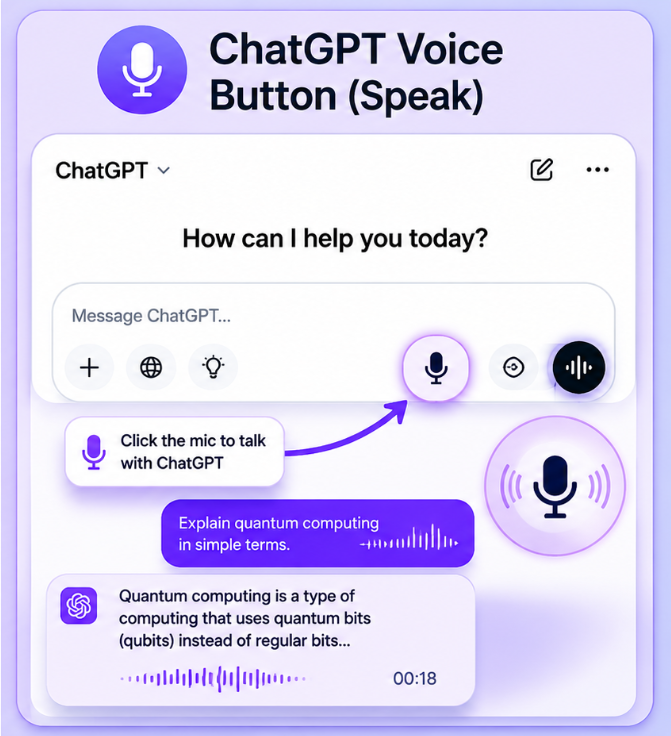
You can have back-and-forth conversations where ChatGPT actually talks to you and listens to your responses. It’s more engaging than typing.
Tips for Better Voice Conversations
- Speak clearly at a normal volume (no need to shout)
- Ask one question at a time rather than bundling multiple questions together
- Use follow-up questions naturally just like you would in a real conversation
- Pause briefly between different topics so ChatGPT understands you’re starting something new
- Be patient with the voice processing, which takes a second or two
Example Voice Prompts for Different Situations
| Use Case | Example | When You’d Use It |
| Learning | “Explain artificial intelligence in simple terms. Use everyday examples.” | During a commute or lunch break |
| Productivity | “Help me plan my workday. I have a client meeting, two emails to send, and a project deadline.” | First thing in the morning |
| Brainstorming | “Give me 10 startup ideas in the AI niche that focus on solving real problems for small businesses.” | During a walk when you want to think out loud |
| Language Learning | “Practice spoken English with me. Ask me questions about my day in English and correct my grammar.” | While exercising or doing chores |
Part 6: How to Upload Images and Files in ChatGPT
One of ChatGPT’s most powerful features is the ability to upload files and images for analysis and assistance. You’re not limited to just typing text. ChatGPT can actually look at things and help you understand them.
What You Can Upload
- PDF documents and long-form papers
- Word documents and text files
- Images, screenshots, and photos
- Excel spreadsheets and data files
- PowerPoint presentations
- Charts, graphs, and visual data
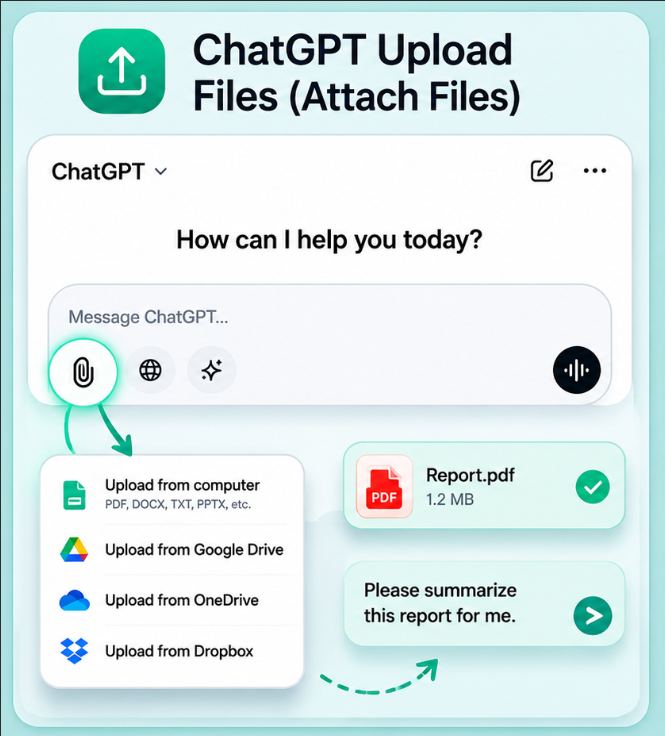
How to Upload Files Step by Step
- Open ChatGPT and start a new chat
- Click the paperclip icon or upload button (usually near the message input area)
- Select a file from your computer
- Wait for the upload to complete (it’ll show a preview)
- Ask ChatGPT a specific question about the file
- ChatGPT analyzes it and responds
What ChatGPT Can Actually Do With Your Files
| File Type | What ChatGPT Can Help With |
| Summarize key points, extract information, explain difficult concepts, answer specific questions about content | |
| Images & Screenshots | Analyze visual content, identify what’s in the image, read text from images, troubleshoot problems shown visually |
| Spreadsheets | Analyze data trends, find patterns, explain what the numbers mean, suggest improvements |
| Resumes | Review for grammar and clarity, optimize for job applications, suggest improvements, format better |
| Screenshots | Explain error messages, troubleshoot problems, help you understand what you’re seeing |
Real-World Examples of Useful Upload Prompts
Example 1 – Summarizing a Document: “Summarize this 20-page PDF report into 5 key bullet points. Focus on the main findings and recommendations.”
Example 2 – Analyzing Visual Data: “Analyze this sales chart and tell me what trends you see. Why might sales have dipped in March? What’s positive about the overall trajectory?”
Example 3 – Improving Your Resume: “Review my resume and suggest 3-5 specific improvements to make it more compelling for marketing positions. Focus on making my accomplishments sound more impactful.”
Example 4 – Troubleshooting an Error: “I’m getting this error message on my screen (attached screenshot). What does it mean and how do I fix it?”
These use cases show ChatGPT’s practical value beyond just answering text questions.
Important Tips for File Uploads
- Upload clear, readable files so ChatGPT can accurately process them
- Ask specific questions rather than vague ones like “What do you think?”
- Avoid uploading sensitive information like passwords, financial statements, or confidential business data
- Use one task at a time for better accuracy (don’t ask ChatGPT to summarize AND analyze AND improve something in one go)
- Be patient with larger files, which take a moment to process
Part 7: Common Beginner Use Cases
Writing and Content Creation
ChatGPT is genuinely helpful for anyone who needs to write. Teachers use it for lesson plans. Business owners use it for marketing copy. Students use it to understand how to structure essays better.
ChatGPT can help with:
- Blog posts and articles
- Professional emails and business correspondence
- Social media captions and content
- Product descriptions and marketing copy
- Content outlines and planning
- Cover letters and application materials
Example Prompt: “Write 5 LinkedIn post ideas about productivity tools for remote teams. Make them engaging and include a call to action that encourages shares or comments.”
Learning and Education
Students at all levels use ChatGPT as a patient tutor available anytime. The key is asking it to explain things in beginner-friendly language.
Use ChatGPT to:
- Learn difficult topics explained simply
- Summarize complex concepts into key ideas
- Generate study notes from confusing material
- Create practice questions to test your understanding
- Get instant explanations when you’re confused
Example Prompt: “Explain cryptocurrency using simple real-world examples. Pretend you’re explaining to someone who’s never heard of money or finance before. Use analogies I can relate to.”
Coding and Technical Help
Developers, from beginners to experienced professionals, use ChatGPT daily. It’s particularly helpful when you hit an error or don’t understand why something isn’t working.
ChatGPT can:
- Explain what your code is doing line by line
- Debug errors and suggest fixes
- Generate code snippets and templates
- Teach programming concepts and best practices
- Help you understand error messages
Example Prompt: “Why does my JavaScript function return undefined instead of the number I expect? Here’s my code: [paste code]. Walk me through what’s happening step by step.”
Productivity and Planning
Use ChatGPT to organize your time and plan effectively.
ChatGPT can help with:
- Weekly planning and goal setting
- Creating to-do lists and project plans
- Scheduling and time management
- Brainstorming project ideas
- Creating meeting agendas
Example Prompt: “Create a weekly study schedule for learning Python. I have 5 hours per week available, and I’m a complete beginner. Include specific topics to cover each day.”
Part 8: Best Practices for Beginners
1. Start Simple and Build Your Skills
Don’t try complex prompts when you’re just starting out. Ask simple questions first, see how ChatGPT responds, and gradually get more specific as you learn what works.
2. Refine Responses Instead of Starting Over
If ChatGPT’s response isn’t quite right, ask follow-up questions to improve it. This is faster and more effective than deleting everything and starting fresh.
3. Fact-Check Important Information
ChatGPT can occasionally make mistakes, especially with very recent information or obscure facts. For anything important, verify information using reliable sources. Use ChatGPT as a starting point, not the final authority.
4. Don’t Share Sensitive Personal Data
Avoid sharing passwords, financial information, social security numbers, or confidential business information. ChatGPT keeps conversations on its servers, so treat it like you would any online service.
5. Practice Regularly to Improve Your Prompting
The more you use ChatGPT, the better your instincts become. You’ll naturally learn what information to include and how to ask questions effectively. Think of it like learning a language through practice.
Part 9: Free vs ChatGPT Plus
For most beginners, the free version is genuinely sufficient.
| Feature | Free | Plus |
| Basic ChatGPT Access | Yes | Yes |
| Faster Responses | No (slower during peak times) | Yes, consistently fast |
| Advanced AI Models | Limited to GPT-3.5 | Access to GPT-4 and latest models |
| File & Image Uploads | Yes | More usage |
| Image Generation | Limited | Better quality and more generations |
| Voice Features | Basic | Enhanced capabilities |
| Web Browsing | No | Yes (access to current information) |
| Custom GPTs | No | Yes (create personalized versions) |
The Bottom Line: Most beginners should absolutely start with the free version first. Upgrade to ChatGPT Plus ($20/month) only if you find yourself hitting usage limits or needing professional-level features for work. There’s no shame in starting small and upgrading later.
Part 10: Common Mistakes Beginners Make
Understanding these mistakes helps you avoid them and get better results faster.
| Mistake | Why It Happens | Solution |
| Asking vague questions | Thinking ChatGPT can read minds | Be specific about what you want and why |
| Trusting every answer blindly | Assuming AI is always correct | Verify important information independently |
| Using long, confusing prompts | Trying to include everything at once | Keep prompts focused on one task |
| Not refining responses | Accepting the first answer | Use follow-up questions to improve results |
| Uploading sensitive information | Not thinking about privacy | Never share passwords, financial data, or confidential info |
| Giving up too quickly | First response isn’t perfect | ChatGPT gets better with context and follow-ups |
| Using the same prompts repeatedly | Not learning what works | Experiment with different approaches and tones |
Final Thoughts
ChatGPT is one of the most accessible and genuinely useful AI tools available today, and you don’t need any technical background to start benefiting from it immediately. Whether you’re a student trying to understand difficult concepts, a professional looking to work more efficiently, a content creator searching for ideas, or simply someone curious about AI, this tool has something practical to offer for almost every task you encounter.
The real secret to getting the most out of ChatGPT is learning how to communicate with it clearly and intentionally. Think of it like this: you wouldn’t give a friend vague instructions and expect perfect results. The same applies to ChatGPT. When you’re clear about what you want and why you want it, the responses become genuinely valuable.
Start with these practical steps:
- Create a free account (takes 5 minutes)
- Ask a few test questions to get comfortable with the interface
- Practice writing clear prompts and see what works best
- Explore voice mode and file uploads when you’re ready
- Use it consistently so it becomes a regular part of your workflow
The more you use ChatGPT, the more indispensable it becomes. What seems like a novelty at first becomes an actual productivity tool you rely on daily. That’s when you’ll realize why millions of people are adopting AI as part of their regular work and learning processes.
Frequently Asked Questions
Is ChatGPT Free?
Yes, ChatGPT offers a free version that gives you access to its core features, making it a great starting point for beginners. The free plan lets you have full conversations, ask questions, get writing help, and explore most everyday use cases without spending anything. You only need to consider upgrading if you find yourself hitting usage limits or needing advanced features for professional work.
Can ChatGPT Replace Google?
ChatGPT and Google serve different purposes, so one does not fully replace the other. Google is better when you need live news, verified sources, or real-time information like current prices or recent events. ChatGPT shines when you need detailed explanations, creative writing, brainstorming support, or help breaking down a complex topic in simple terms. Using both together actually gives you the best results.
How Long Does It Take to Learn ChatGPT?
Most beginners get comfortable with the basics within 30 to 60 minutes of hands-on practice. You do not need any technical background or prior experience with AI tools. The learning curve is gentle because you interact with ChatGPT using plain, everyday language, and the more you experiment with different prompts and tasks, the more confident and efficient you naturally become.
Can ChatGPT Analyze Images?
Yes, ChatGPT can analyze images, screenshots, charts, and visual content when you upload them directly into the chat. This makes it useful for tasks like understanding a graph, troubleshooting an error shown on your screen, or getting feedback on a design. Just upload the image, ask a clear and specific question, and ChatGPT will provide a detailed response based on what it sees.
Is ChatGPT Good for Students?
Absolutely. Students across all levels use ChatGPT to simplify difficult concepts, generate study notes, create practice questions, and get instant explanations on topics they find confusing. It works especially well when you ask it to explain something in simple language or give you real-world examples. Think of it as a patient tutor available around the clock that never gets tired of your questions.