
Most AI assistants wait for your next prompt. OpenAI Dots are always-on agents in ChatGPT that can take on ongoing responsibility and keep making progress between conversations. Rather than starting fresh each time you need help, a Dot can own a responsibility, work independently within your boundaries, and bring results back for your review.
This guide teaches you how to set up your first Dot, connect the apps it needs, define what it can do independently, schedule recurring work, and monitor its progress. Whether you want to automate research, manage projects, or handle administrative tasks, this is your complete roadmap for getting started with OpenAI Dots.
At a Glance
OpenAI Dots are powered by GPT-6 Astra and have their own cloud computer. You can create one on desktop and message it across ChatGPT, Slack, Teams, and eventually by text. Each Dot remembers context, connects to apps you choose, and works in the background. You stay in control through Custom Rules and approval settings. The first Dot is included free with Pro and Business Premium plans.
What Are OpenAI Dots?
OpenAI Dots are personal agentic assistants powered by GPT-6 Astra that are meant to operate independent of any specific hardware or interface, pursuing user-defined goals continuously in the background with minimal oversight.
Unlike a regular ChatGPT conversation that requires your input after each exchange, a Dot can work on ongoing responsibilities between conversations. You can give it a goal, connect the information sources it needs, define what it can do alone versus what requires your approval, and it continues making progress whether you’re actively chatting or not.
Definition Box:
OpenAI Dots are always-on agents in ChatGPT that take responsibility for ongoing work, connect to your chosen apps, learn from context, remember progress between conversations, and return results or questions for review. They run on their own cloud computer and operate within boundaries you define.
What You Need to Use OpenAI Dots
Who Can Access Dots Right Now
OpenAI Dots are rolling out to eligible ChatGPT users, with availability depending on plan and region. Pro users can access Dots in supported markets, while Business and Enterprise availability varies by workspace and rollout status.
Your first dot is included in your Pro or Business Premium plan at no extra cost. Conversations with a dot do not count toward ChatGPT usage limits.
How to Check Availability
Dots are rolling out gradually. If you’re a Pro user outside restricted regions or a Business Premium user anywhere, access may take several days to appear. Check the ChatGPT menu to see if the Dots option has arrived on your account.
Desktop vs Mobile
Create your dot in the ChatGPT desktop app or in ChatGPT on desktop web. After creating your dot, you can talk to it in the ChatGPT mobile app when mobile access is available. You cannot currently create a dot on mobile, and dots are not supported on mobile web.
Before You Start
Checklist:
- Verify your plan (Pro or Business Premium)
- Confirm you’re in an eligible market
- Have the desktop app installed or access ChatGPT on desktop web
- Identify which apps your Dot will need to connect to
- Define the responsibility you want your Dot to own
How to Set Up OpenAI Dots
Step 1: Open ChatGPT on Desktop
Launch the ChatGPT desktop app (available for Windows and Mac) or go to ChatGPT on a desktop web browser. You cannot create a Dot on mobile, so desktop access is required for setup.
Step 2: Create Your Dot
Follow the onboarding prompts to get started. In ChatGPT, look for the Dots option in the main menu. Select “Create a new Dot” and follow the setup flow. OpenAI will guide you through basic configuration and explain what your Dot can do.
Step 3: Name and Personalize Your Dot
You can give your dot a name during setup. Its default handle is @yourname-dot. When you name it, its handle becomes @yourname-agentname. To change its name or avatar later, select its name or avatar to open the profile, then select the pencil icon. You can choose from the available characters or select a pet for your dot.
Pick a name that reflects the Dot’s responsibility. For example, “Research-Bot” for a Dot that monitors industry trends, or “Calendar-Manager” for one that coordinates scheduling.
Step 4: Connect the Apps Your Dot Needs
Connected apps give your dot access to information it can use for your tasks. Your dot can also review that information proactively and form memories from it, even when you haven’t asked a specific question about it.
Dots can connect to more than 4,000 services that are already available through OpenAI’s ecosystem.
To connect apps on mobile, open your Dot’s profile and go to Customize > Plugins. Select a supported app and review its permissions before connecting it. On desktop, look for the app connections in your Dot’s settings.
Only connect the apps your Dot actually needs. More connections mean more data your Dot has access to, which can make it slower and less focused. Start minimal.
Common app connections include:
- Google Calendar (for scheduling awareness)
- Gmail or personal email (for communication context)
- Google Drive or Microsoft OneDrive (for documents and files)
- Slack (for team communication)
- Google Search or Bing (for research capability)
- Notion or Asana (for project context)
Step 5: Decide Whether Your Dot Needs Computer Access
Your Dot has its own cloud computer by default. Access to your local computer is optional and starts turned off. To connect a computer, use the ChatGPT desktop app on that computer. Work on your local computer runs in separate tasks that appear in the sidebar.
When to enable local computer access:
- You need your Dot to work with files stored only on your computer
- You want your Dot to use local applications or software
- Your Dot needs to interact with devices on your local network
When a cloud computer is sufficient:
- Your Dot researches information online
- Your Dot manages tasks in cloud apps (Slack, Asana, Notion)
- Your Dot drafts content based on cloud-stored documents
- Your Dot monitors email or calendar
With local computer access enabled, your Dot can create Work or Codex tasks, use local skills, and use your local browser when its cloud browser is blocked.
If you’re unsure, leave local computer access disabled. You can enable it later if your Dot needs it.
How to Give Your OpenAI Dot an Ongoing Responsibility
The difference between a useful Dot and an ineffective one is clarity. A vague instruction like “Research our competitors” will produce vague results. A clear responsibility produces focused, relevant work.
An effective Dot instruction includes:
- The Responsibility: What ownership are you giving this Dot?
- The Objective: What outcome are you actually trying to achieve?
- The Tools/Apps: Which information sources or connected apps should it use?
- Allowed Actions: What can it do independently?
- Approval Boundaries: What requires your explicit sign-off?
- Reporting Frequency: How often should it update you?
- Success Criteria: What does completion look like?
Reusable Dot Instruction Template:
“You are responsible for [specific responsibility].
Your goal is to [concrete outcome].
Use these information sources: [list of apps or data].
You may act independently when [describe low-risk actions].
Ask me before [describe decisions that need approval].
Report [when and what format] and let me know [what conditions trigger an update].
Consider the work complete when [define clear completion criteria].”
Real Example: Content Research Dot
“You are responsible for monitoring AI industry developments relevant to our content strategy.
Your goal is to identify emerging trends, new products, and significant announcements that might be worth covering.
Use Google Search, industry publications we follow on Notion, and relevant RSS feeds.
You may independently compile research summaries, flag new products, and organize findings by topic.
Ask me before suggesting topics for articles or reaching out to external sources.
Report every Monday morning with a summary of the past week’s key developments. Escalate immediately if you find something related to our direct competitors’ releases.
Consider the task complete when you’ve covered all major announcements from the previous week.”
This level of clarity saves your Dot from drifting. It knows exactly what to prioritize and when to interrupt you.
How to Run Your First OpenAI Dot Workflow
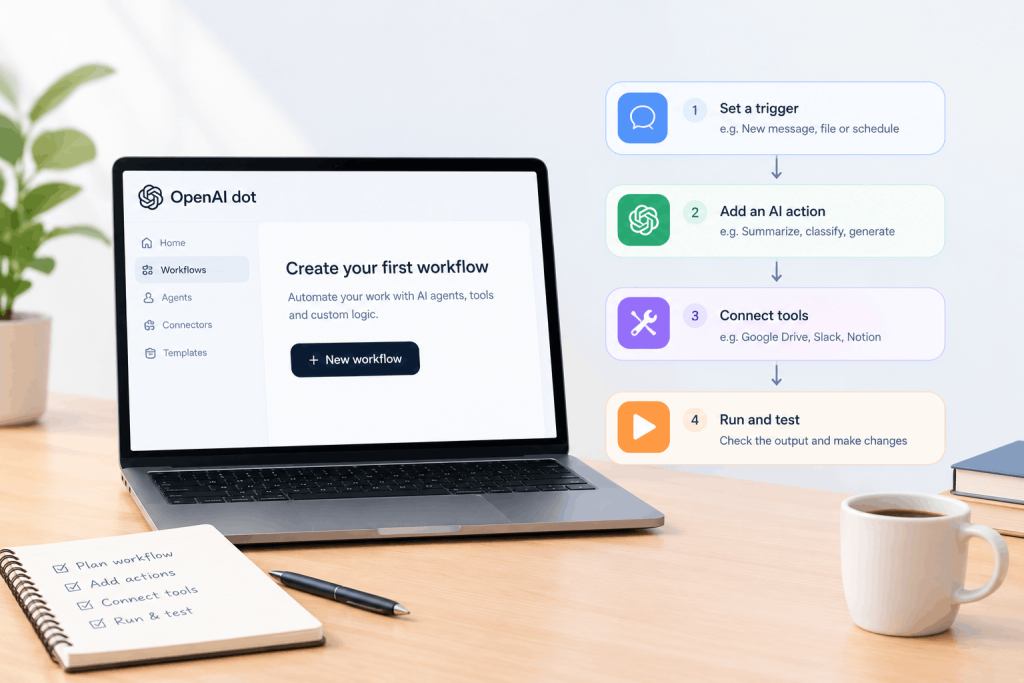
Let’s walk through a complete practical workflow: building a Content Research Dot.
Step 1: Define the Responsibility
You tell your Dot: “Monitor industry news and emerging trends in AI for content opportunities. Compile weekly research summaries every Sunday evening.”
Step 2: Connect Relevant Sources
Your Dot connects to Google Search, your Notion database of competitor products, and your Gmail (so it can see what press releases you receive).
Step 3: Establish What It Should Monitor
You explain: “Watch for announcements from OpenAI, Anthropic, Google, and Meta. Also monitor industry blogs and academic papers published on arXiv related to AI agents.”
Step 4: Define Independent Actions
Your Dot can independently organize research by category, add new findings to your Notion database, and flag items by importance level.
Step 5: Define Approval Boundaries
Your Dot must ask before drafting article outlines, recommending specific topics, or contacting external sources.
Step 6: Set Reporting Structure
“Send me a summary every Sunday at 6 PM. Include a ‘This Week’s Must-Cover Topics’ section and a ‘Lower Priority Items’ section. If you find breaking news during the week, message me immediately.”
Step 7: Review the First Output
When your Dot delivers its first research summary, read it carefully. Does it understand your priorities? Are the sources useful? Are you getting noise or signal?
Step 8: Correct and Refine
You might say: “Good start. Focus less on academic papers and more on product announcements. Also, I noticed you included some smaller startups I don’t know. Stick to the companies I listed. Next report should be in this format: [describe format].”
Your Dot learns from this feedback and adjusts future reports.
Step 9: Let It Continue
Once the output quality is acceptable, let the Dot continue. You no longer start new conversations to request research. Your Dot brings you work automatically, saving you hours each week.
This pattern works better than repeated ChatGPT conversations because your Dot builds context over time, remembers your standards, and doesn’t require you to re-explain the task.
How OpenAI Dots Work in the Background
Proactive Research
Your dot can research in the background and suggest ways to help. It can also review connected information proactively and form memories from it, even when you haven’t asked a new question.
This is different from ChatGPT. A regular conversation waits for you to ask a question. A Dot can review your connected apps, notice patterns, and bring you insights unprompted.
For example, if your Dot is connected to your email and calendar, it might notice that you have back-to-back meetings coming up and proactively research background information for each one. Or if your Dot monitors a Slack channel, it might notice a problem being discussed and research potential solutions before anyone asks it to.
Proactive research is read-only during background work. OpenAI states that Dots feature a “read-only” mode that prevents agents from controlling a user’s browser or computer when he or she is not present. This means your Dot can gather information and prepare work, but cannot make changes to your systems unless you’ve explicitly approved that action in Custom Rules.
Background AI Automation
Your Dot can run reminders or recurring tasks you’ve scheduled. This is distinct from proactive research. While proactive research is your Dot noticing patterns and suggesting ideas, background automation is your Dot doing the work you’ve explicitly assigned at specific times.
Your Dot can:
- Review your calendar each morning and prepare summaries
- Monitor a project dashboard and flag status changes
- Check email for messages from key people and summarize them
- Gather data for weekly reports without your intervention
- Prepare materials before your scheduled meetings
The key difference from a bot or script is that your Dot understands context and judgment. It doesn’t just run blindly; it adapts to what it finds.
What Happens When Your Dot Needs You
It can work through complex problems, figure out what needs to happen next, and bring results back for your review. It turns to you for decisions that need your judgment.
Your Dot might complete research autonomously but ask you to approve before sending an email. Or it might prepare a draft proposal and wait for your feedback before refining it. Or it might notice a discrepancy in data and escalate to you rather than deciding how to resolve it.
You define these boundaries through Custom Rules. Your Dot respects them.
How to Schedule OpenAI Dots Tasks
Ask your Dot to set a reminder or run a recurring check. For example, you could ask it to review your calendar each morning and tell you what’s coming up.
To schedule tasks, simply ask your Dot in conversation: “Review my calendar every weekday morning at 8 AM and tell me what meetings I have and any prep I should do.” Your Dot will set up the scheduled task and confirm it.
Managing Scheduled Tasks
Scheduled runs and proactive updates appear in the conversation. To manage scheduled tasks, open Scheduled in your Dot’s profile. You can review active, paused, and completed tasks. Open a task to change its repeat schedule, time, or completion notifications.
In your Dot’s profile, the “Scheduled” section shows all recurring tasks. You can pause individual tasks, change their timing, or delete them entirely.
Practical Scheduling Examples
Example 1: Daily Calendar Review
“Every weekday at 7:30 AM, review my calendar and send me a summary of the day’s meetings with any notes on preparation needed.”
Example 2: Weekly Competitor Research
“Every Friday at 5 PM, compile this week’s announcements from the companies in my spreadsheet and send me a summary with links.”
Example 3: Recurring Project Status Check
“Every Monday morning, check the status of each project in Asana, flag anything behind schedule, and prepare a one-page status report for my team.”
Scheduling works because your Dot remembers the task and doesn’t need you to re-request it. You get consistent, automated updates without manual prompting.
How OpenAI Dot Memory Works
Your Dot receives memories from ChatGPT and can create its own memories, including from connected apps. This lets it use context in ongoing work.
Memory has two sources:
ChatGPT Memory: When you use ChatGPT’s memory feature to remember facts about you (your preferences, your job, your goals), your Dot can access this shared memory. This helps your Dot understand the broader context of your work.
Dot-Specific Memory: Your Dot also creates its own memories from conversations and from information it gathers through connected apps. If your Dot researches your competitors regularly, it builds memory about their strategies, product changes, and key personnel. This memory makes the Dot more useful over time.
Memory is why your Dot improves. Early reports might be rough. After weeks of research, your Dot understands your priorities, your terminology, what information is relevant, and what you care about. The quality of its work increases.
Resetting Memory
To delete your Dot’s own saved memories, you need to delete your Dot. If you decide to reset your Dot (starting fresh), everything it has learned is deleted. This can be useful if you want to significantly change your Dot’s responsibility or start with a cleaner slate.
How to Control What Your OpenAI Dot Can Do
You always stay in control. You choose which apps dots can access and can manage their permissions through your existing ChatGPT app controls. More importantly, you set boundaries and specify what your dot can do on its own, when it should ask first, and what it should never do.
Custom Rules
For some actions, you can set rules for what your dot can share, purchase, or access.
To set a Custom Rule, open your Dot’s profile and go to Customize > Custom Rules. Describe the action, then select one of these behaviors:
- Take action without asking: Your Dot handles this independently
- Take action if pre-approved: Your Dot can act if you’ve explicitly requested it in this conversation
- Ask before taking action: Your Dot requests permission each time
- Hand off to you: Your Dot prepares the work, but you do the final action
Practical Approval Matrix
| Action Type | Suggested Control | Why |
| Research and information gathering | Take action without asking | Low risk, core function |
| Drafting content or emails | Take action without asking | Gives you something to review |
| External communication (sending emails) | Ask before taking action | You need to approve content |
| Purchases or payments | Ask before taking action | Consequential, needs verification |
| Account changes or access modifications | Hand off to you | Too important for delegation |
| Sending to external APIs or third parties | Ask before taking action | Privacy and security concern |
Remember: This is guidance, not OpenAI policy. Your own risk tolerance should drive these decisions.
Important Safety Note
Your dot can make mistakes, including when following your rules. Review its work and check important details before relying on the result. Custom Rules don’t guarantee perfect behavior. They guide your Dot, but human review remains essential for consequential work.
How to Monitor Your OpenAI Dot
One of the biggest advantages of a Dot is visibility. Unlike a bot running silently, you can see exactly what your Dot is doing at any time.
Open your Dot’s profile on the desktop app to review activity under In Progress, Scheduled, and Completed.
Activity View Sections
In Progress: Tasks your Dot is currently working on. You can see what it’s researching, what it’s preparing, and where it’s spending its effort.
Scheduled: All recurring tasks and reminders you’ve set up. Shows the next scheduled run time and the task description.
Completed: Historical log of work your Dot has finished. Useful for auditing what was done and when.
Inspecting Your Dot’s Computer
You can also open your Dot’s computer from the profile to view and interact with it. This lets you see what websites your Dot visited, what searches it ran, and what information it gathered. You can watch it work or take over if needed.
Pausing and Redirecting
To stop your Dot until you’re ready to resume, open the ••• menu in its profile and select Pause. To start it again, select Paused. Tap to resume.
If your Dot is working on something you want to stop, pause it. This halts scheduled tasks and proactive work. You can resume whenever you’re ready.
If your Dot is heading in the wrong direction, you can interrupt in the conversation: “Stop working on that. Instead, focus on X.” Your Dot adapts.
OpenAI Dots Use Cases
Content and Marketing
A Dot can monitor industry trends, research competitor websites, compile trending topics in your space, and prepare content briefs. It can also draft content outlines, coordinate with team members via Slack, and track content performance metrics automatically.
Use case: A marketing team uses a Dot to monitor AI announcements and compile weekly research summaries that feed their content calendar.
Software Development
A Dot can monitor GitHub repositories, review open issues, test code changes, and prepare deployment notes. It can also monitor application logs, flag errors, and suggest fixes.
Use case: A developer uses a Dot to review pull requests, run tests, and flag breaking changes before they reach production.
Research and Analysis
OpenAI shows Dots updating scientific analyses as new experimental evidence arrives, revising figures and explanations when findings change.
Use case: A researcher uses a Dot to monitor new publications in their field, update literature reviews, and flag papers relevant to their work.
Sales and Proposals
A Dot can research prospects, gather competitive intelligence, prepare proposal outlines, and track deal stages. It can also remind you about follow-ups and prepare pre-meeting research.
Use case: A sales team uses Dots to research accounts before calls, track competitive activity, and prepare customized proposals faster.
Project Management
A Dot can monitor project timelines, flag delays, prepare status reports, and coordinate updates across team members. It can also prepare meeting agendas and track decisions.
Use case: A project manager uses a Dot to track project health, prepare weekly status reports, and alert the team to risks automatically.
Business Operations
A Dot can coordinate expense reports, track hiring pipelines, monitor budget status, and prepare financial reports. It can also handle scheduling and coordinate between departments.
Use case: An operations team uses Dots to coordinate cross-functional workflows, track key metrics, and prepare executive reports.
Best Practices for OpenAI Dots
- Give the Dot a responsibility, not just a prompt. “Monitor competitor announcements” beats “Research competitors” because it’s a clear ownership boundary.
- Start with narrow workflows. Don’t ask your Dot to handle five different responsibilities at once. Pick one, get it right, then expand.
- Connect only necessary apps. Fewer connections mean faster, more focused Dots. Add apps only when the Dot actually needs them.
- Define approval boundaries. Decide upfront what your Dot can do alone and what needs your sign-off. Use Custom Rules to enforce this.
- Give explicit success criteria. Tell your Dot what completion looks like. “Research competitors” is vague. “Identify three product releases and compare features” is clear.
- Tell the Dot when to interrupt you. You can review active, paused, and completed tasks and manage their notifications. Decide what warrants an urgent alert versus a weekly summary.
- Review early work carefully. Before letting your Dot run unsupervised, validate the first few outputs. Does it understand your standards? Is the quality acceptable?
- Use background work for monitoring and preparation. Your Dot excels at gathering information and preparing work, not at making critical decisions alone.
- Keep high-impact actions under human control. Purchases, account changes, external commitments, and consequential decisions should require your approval.
- Pause or redirect the Dot when requirements change. If your priorities shift, adjust your Dot’s responsibilities. Don’t let it continue obsolete work.
OpenAI Dots Limitations and Considerations
Current Availability
Dots are rolling out gradually. Access may take several days to reach your account. Pro users in certain regions (EEA, Switzerland, UK) don’t have access yet. Enterprise access requires admin enablement.
Plan and Regional Restrictions
Dots are rolling out today in ChatGPT to Pro users in markets excluding the European Economic Area, Switzerland, and the UK. Dots are also available to Business Premium users across all supported ChatGPT regions.
Platform Limitations
You cannot currently create a dot on mobile, and dots are not supported on mobile web. Creation requires desktop access.
Connected App Limitations
Not all apps support all Dot features. Integrations vary. Check your Dot’s app list to see which services are supported.
Errors and Review Requirements
OpenAI acknowledges that Dots can still make mistakes and advises users to review consequential work. Your Dot is not infallible. High-stakes decisions should always be reviewed.
Usage and Allowances
Your plan also includes an allowance for deeper work, with extended limits for the first month after launch. In the future, you’ll be able to add more dots and scale the output of each dot by either increasing its speed or the total amount of work it can take on per month. Initial rollout includes generous allowances, but usage limits will apply as the product matures.
Privacy and Data
We don’t use content from ChatGPT Business, Enterprise, or Edu workspaces to improve our models by default. On personal ChatGPT plans, you can control whether dots’ conversations and work are used to improve our models.
Safety Safeguards
Dots build on ChatGPT’s protections with additional safety and privacy safeguards for the work they can do. These include read-only mode during unsupervised work and approval controls.
OpenAI Dots Availability Across Platforms
Desktop App
Create your dot in the ChatGPT desktop app or in ChatGPT on desktop web. Both platforms fully support creation and ongoing management.
Mobile
After creating your dot, you can talk to it in the ChatGPT mobile app when mobile access is available. You can message your Dot and review its work on mobile, but cannot create a new Dot from mobile.
Messaging Platforms
Users can message Dots through Slack, Teams, and other organizational platforms, with text message support coming soon.
Specifically, you can connect your Dot to Slack and set up messaging channels from desktop.
Text Messaging (Beta)
Where available, texting uses a third-party provider and is offered as a limited beta. The beta is limited to Pro users in the US and is not available in Business or Enterprise workspaces.
Final Takeaway
OpenAI Dots represent a fundamental shift in how AI can help you work. Rather than starting a new conversation each time you need assistance, a Dot owns a piece of your ongoing work, learns your standards, remembers context, and delivers progress without you asking.
The basic workflow is simple: Create > Connect apps > Define responsibility > Set boundaries > Schedule > Monitor > Review > Let it continue.
Start with one focused responsibility. Give your Dot clear boundaries and approval requirements. Review its early outputs carefully. Gradually let it work more independently as it proves it understands your standards.
Dots work best for work that’s ongoing, routine, benefits from continuity, and involves monitoring or preparation. They excel at research, status tracking, content compilation, and scheduled automation. They’re less suited for one-time tasks or decisions that require complex human judgment.
Your control over your Dot never disappears. You always stay in control. Set boundaries and specify what your Dot can do on its own, when it should ask first, and what it should never do. Approval settings, Custom Rules, the ability to pause, and Activity monitoring ensure you’re never passive in the relationship.
This is frontier AI, so expect learning. Early Dots may make mistakes. That’s normal. Review their work, correct course, and let them improve. The payoff is significant: work that gets better and more efficient over time without you having to re-teach it constantly.
Frequently Asked Questions
What are OpenAI Dots?
OpenAI Dots are always-on agents in ChatGPT that can take on ongoing responsibility and keep making progress between conversations, powered by GPT-6 Astra with their own cloud computer.
How do I use OpenAI Dots?
Create a Dot on desktop, give it a responsibility, connect the apps it needs, define what it can do independently, and let it work. You monitor its progress through Activity View and can pause, adjust, or redirect it at any time.
How do I create an OpenAI Dot?
Create your dot in the ChatGPT desktop app or in ChatGPT on the web. Follow the onboarding prompts to get started.
Can OpenAI Dots work in the background?
Yes. Your dot can research in the background and suggest ways to help. It can also review connected information proactively and form memories from it, even when you haven’t asked a new question.
Can OpenAI Dots run scheduled tasks?
Ask your dot to set a reminder or run a recurring check. For example, you could ask it to review your calendar each morning and tell you what’s coming up.
Can OpenAI Dots access my computer?
Your Dot has its own cloud computer. Access to your local computer is optional and starts turned off. You can enable it if your Dot needs access to local files or applications.
Can OpenAI Dots connect to Slack?
You can connect your dot to Slack. Set up messaging channels from desktop.
Do OpenAI Dots remember previous work?
Your dot receives memories from ChatGPT and can create its own memories, including from connected apps. This lets it use context in ongoing work.
How do I pause an OpenAI Dot?
To stop your dot until you’re ready to resume, open the ••• menu in its profile and select Pause.
How do I reset an OpenAI Dot?
Reset deletes your dot, including its conversations, saved memories, and scheduled tasks. Open your dot’s profile and select the ••• menu, then select Reset to confirm.